NinjaTrader ATM Strategies: Stops, Targets and Rithmic Accounts
Set up NinjaTrader ATM stops and targets, understand template selection, and keep Rithmic connections, trade copying and automated entries separate.
On this page
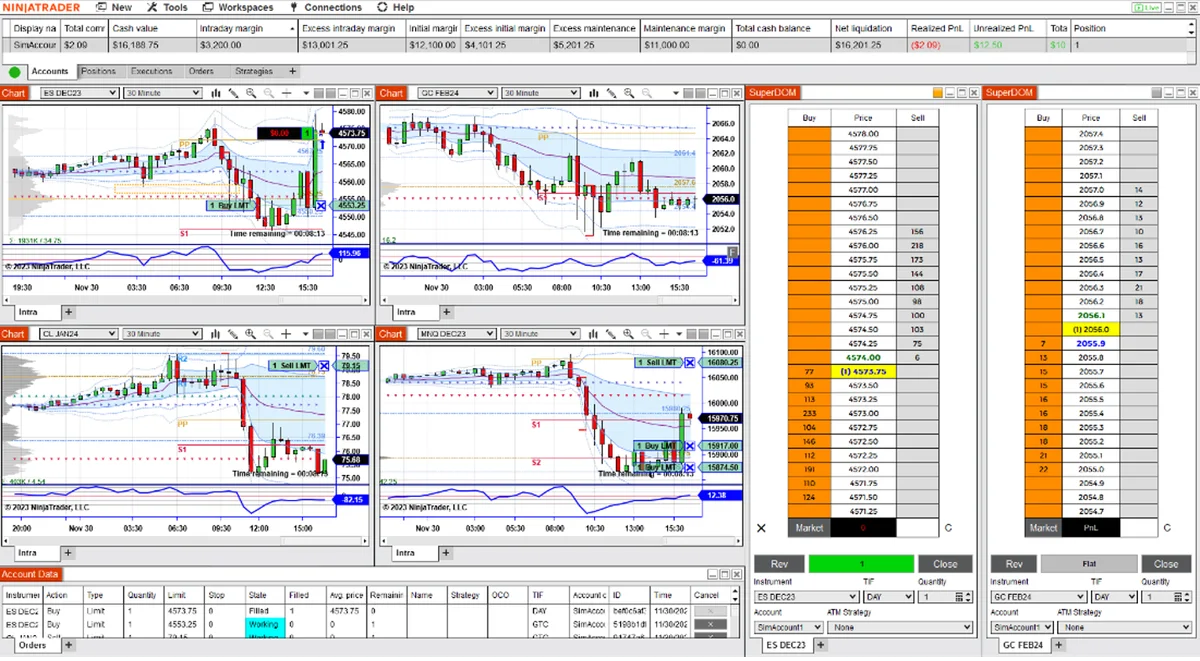
A NinjaTrader ATM Strategy manages stop-loss and profit-target orders for a position. In a manual-entry workflow, you select its template before submitting an entry; exit management begins when that entry fills or partially fills. An ATM template does not connect your Rithmic account or copy the trade to another account. NinjaTrader describes ATM as semi-automated position management.
Where ATM fits in your Rithmic setup
| Component | Its job |
|---|---|
| Rithmic connection | Makes the trading account available in NinjaTrader. |
| ATM Strategy | Manages the selected position’s stops and targets using the chosen settings. |
| Automated NinjaScript strategy | Can generate entries from programmed conditions. NinjaScript can also invoke an ATM for exit management. |
| Trade copier | Sends trades or orders to configured follower accounts according to the copier’s settings. |
PropFirmConnector connects any Rithmic account to NinjaTrader 8. Use the connection guides to establish your account connection, then configure order management in NinjaTrader. For follower accounts, follow the separate copy-trading workflow.
An ATM used for a discretionary entry and a fully automated trading strategy are different workflows. NinjaTrader documents the NinjaScript-to-ATM integration separately. Check how your firm’s current rules classify the workflow you intend to use; the software feature does not grant trading permission.
Set up a template before entering a trade
Choose the intended simulation account: local Sim101 or your issued Rithmic account and check the account selector before placing any practice order.
- In your order-entry window, confirm the instrument, account and entry quantity.
- In the ATM Strategy selector, choose Custom to define a setup, or select a saved template and edit to review its parameters.
- Check Parameter type. Ticks, price and currency express different things; a value of 10 does not always mean 10 ticks.
- Set the stop and target values and their quantities. If using several targets, review how the entry quantity is allocated across them.
- Check the selected template and time in force again before submitting the entry. After a fill, inspect the resulting orders rather than assuming the template created the exits you intended.
The parameter reference explains these controls. Selecting None does not start an ATM or attach the entry to an active ATM. A pending entry that has not filled does not yet trigger its ATM stops and targets.
To rehearse the same order-entry sequence more than once, use NinjaTrader Market Replay with Playback101. Keep replay practice separate from trading your issued account.
A template and an active ATM behave differently
The selector can show a saved template or an already-running ATM. That distinction matters when adding another entry:
- Saved template selected: the new entry can start a new ATM with its own stop/target bracket.
- Active ATM selected: the additional fill is applied to that ATM, updating the existing bracket quantities.
The order-entry window’s ATM Strategy selection mode controls what stays selected after an order is submitted. NinjaTrader offers modes that select the active ATM or keep the template selected. Choose the behavior you want before scaling in; see the selection-mode reference.
Check exits separately on copied accounts
The leader’s visible bracket does not establish what is working on a follower. Review your copier’s documentation for how it handles ATM orders, stop/target changes and follower-side order management. Inspect the account, instrument, quantity and working exits on each follower during simulation.
Our NinjaTrader copier comparison distinguishes documented copying features. PropFirmConnector provides the account connection; it does not choose an ATM template or replace the copier.
Do not assume all ATM behavior survives a disconnect
An accepted order and ongoing exit-management logic are different things. NinjaTrader’s order-location reference distinguishes brokerage/exchange-held orders from locally simulated behavior. Do not assume that every adjustment or cancellation will continue if the desktop loses its connection. Know how to inspect working orders and positions through your provider before using the setup live.
Documentation reviewed October 17, 2026. No live-account, execution-quality or disconnect test is claimed.
PropFirmConnector publishes this article and sells the Rithmic connection add-on described on this site.