NinjaTrader Sim101 vs a Rithmic Prop Firm Account
Choose the right NinjaTrader account for practice or a prop-firm evaluation. Understand Sim101, Global Simulation Mode, account selectors and local resets.
On this page
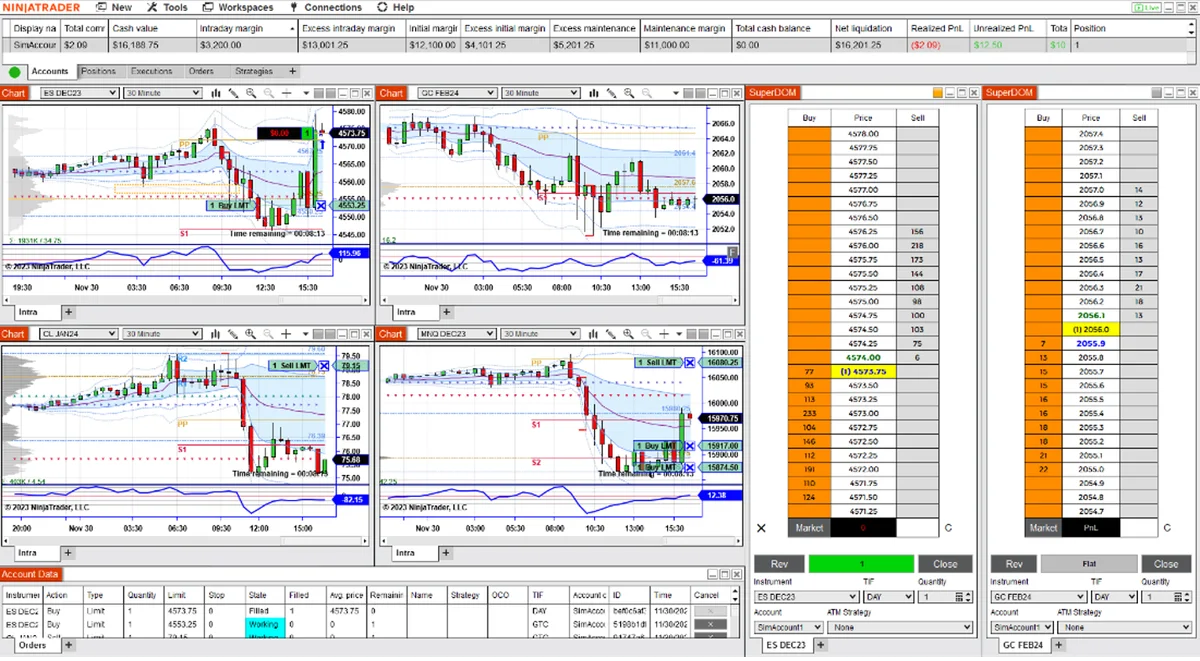
Sim101 is NinjaTrader’s local practice account. It is separate from the Rithmic account your prop firm issues, even when that firm account also uses simulated trading. Choosing Sim101 in an order-entry window sends that window’s orders to the local simulator; it does not select your evaluation account.
For a concrete example, OneUp’s connection guide explicitly says Sim101 trades are not recorded in its evaluation. Identify the actual account before practicing or trading toward a firm’s requirements.
Two accounts can both be simulated
| What you see | What it represents | What to check |
|---|---|---|
| Sim101 | NinjaTrader’s built-in local simulation account, with its own balance and results. | Select it intentionally for local order-entry practice. |
| Your issued Rithmic account ID | A separate account supplied by your firm or broker. Its stage may be evaluation, simulated-funded or live. | Match the ID to the issuer’s onboarding details and current account stage. |
| A chart showing live prices | Market data displayed in a chart. | Check the order-entry account separately; live prices do not identify the destination of an order. |
NinjaTrader’s Accounts tab can display Connection, Name and Display Name. The actual account name can differ from its display name. Use those fields to distinguish accounts instead of relying on a familiar label or balance alone.
PropFirmConnector connects any Rithmic account to NinjaTrader 8. The connection guides help you connect the issued account; you still choose the intended account in each order-entry window.
What Global Simulation Mode changes
Under Control Center > Tools > Global Simulation Mode, a check mark means the mode is enabled. NinjaTrader documents that this restricts its order-entry interfaces to simulation accounts. You can also select Sim101 in an individual window without enabling the global setting.
Do not equate a firm’s description of an account as “simulated” with NinjaTrader’s local simulation mode. OneUp, for example, instructs its evaluation users to turn Global Simulation Mode off and select their issued account. Follow your account’s setup instructions, then verify the identifier in the selector.
Global Simulation Mode is an order-entry setting. Turning it off does not turn an evaluation into a live brokerage account, create a missing account or change your firm’s rules.
Practice without confusing the destination
- Check any trade copier first. Disable copying to firm or live accounts before local practice. A copier is a separate workflow; do not assume selecting Sim101 prevents an add-on from sending orders to configured followers. Review its settings and documentation.
- Use an appropriate data connection. NinjaTrader recommends simulation with streaming data during market hours. Off-hours bid/ask conditions can produce misleading simulated fills.
- Select Sim101 in the window you will use. Check Chart Trader, SuperDOM and any strategy account settings individually. A selection in one place is not evidence that every other window or add-on has the same destination.
- Rehearse the intended task. For example, practice placing and cancelling an order or using an ATM stop-and-target template. Inspect the account shown beside the resulting orders and positions.
To include estimated trading costs in practice reports, assign a commission template to Sim101. Those local settings do not change your firm’s charges.
For repeatable practice outside market hours, use Market Replay with Playback101 and a recorded session.
Before returning to an issued account, check the account ID, instrument, quantity and any copier followers again. The copy-trading guide covers the separate leader/follower workflow. Local simulation practice does not establish how a firm’s risk checks or real executions will behave.
Resetting Sim101 resets local practice
NinjaTrader lets you edit Sim101 from the Accounts tab, set its Initial cash value and use Reset. Its Sim101 reference also describes resetting simulator values and clearing order history.
This changes the local simulator, not your separately issued Rithmic account. It is not a prop-firm account reset or a way to clear the firm’s trading record.
If you meant to trade your firm account
If the issued account is missing, do not use Sim101 as a substitute. Follow the existing Rithmic account not showing in NinjaTrader guide and the Rithmic login checks. That troubleshooting task is separate from choosing a practice account.
Documentation reviewed October 18, 2026. No live-account or execution-quality test is claimed.
PropFirmConnector publishes this article and sells the Rithmic connection add-on described on this site.