NinjaTrader Commission Templates and Rithmic Account PnL
Set NinjaTrader commission templates for Rithmic accounts, understand per-side rates, and compare local Trade Performance results with firm or broker charges.
On this page
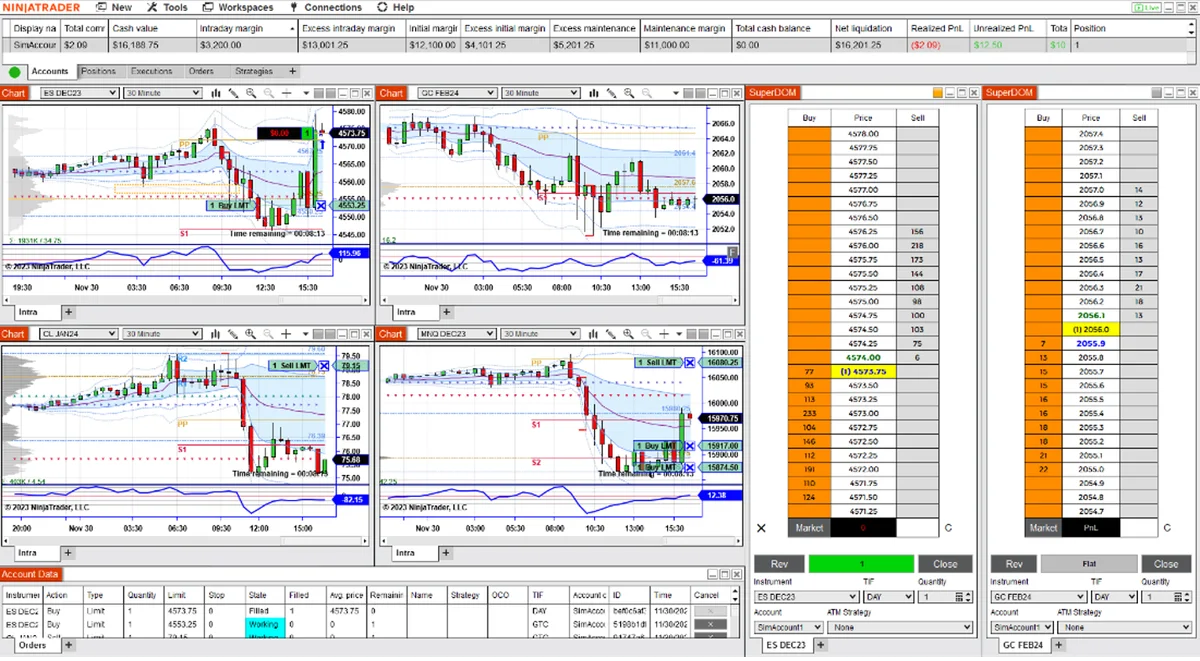
To include commission estimates in NinjaTrader’s local reports, create a commission template and assign it to the correct account. For a Rithmic account, use the current rates supplied by your firm or broker. Changing this template changes local calculations; it does not change what the account provider charges.
NinjaTrader’s Accounts tab documentation states that its commission figures come from the template in your installation, rather than being pulled from the data provider. It also labels Rithmic’s provider account values as excluding commissions. A local PnL display and a provider dashboard therefore need careful comparison.
Set the rate and its unit
Open Control Center > Tools > Commissions, then add a template or copy an existing one and give it a clear name. A prebuilt brokerage template is not evidence of the correct rate for a different firm-issued account.
The commission-template reference defines three important settings:
| Setting | What it does |
|---|---|
| Per-Unit Commission | Applies to each unit in the trade, on each side. For futures, check the per-contract, per-side amount. |
| Minimum Commission | Applies per trade and per side only when the calculated per-unit commission is below the minimum. It is not automatically added on top. |
| Commission Per Instrument | Overrides the corresponding instrument-type setting. Check this if one contract produces an unexpected result. |
Use Commission Per Instrument Type for a shared futures rate, or add instrument-specific entries where rates differ. Check micro and mini contracts separately instead of assuming they have the same charge.
For illustration only, a hypothetical $2 per contract per side, with no applicable minimum, produces $12 in commission for three contracts entered and fully exited: $2 × 3 × 2 sides. This is arithmetic, not a quoted firm or brokerage rate. Do not enter a round-trip amount as the per-side rate.
Confirm whether the figure you received covers commission alone or also includes other fees. Avoid counting the same cost twice when comparing an all-in rate with separate fee columns.
Assign the template to the intended account
Creating the template does not assign it. Follow NinjaTrader’s account assignment steps:
- Open the Accounts tab in Control Center.
- Match the account’s Name and Connection to the account you want to review.
- Right-click that account and choose Edit Account.
- Select the template in Commission, then click OK.
You can show Commission Name in the Accounts grid to check the assignment. Review each account separately when using multiple Rithmic logins.
For local practice, assign the appropriate template to Sim101. Playback101 inherits Sim101’s settings, including its commission template; it cannot be edited directly. Set those practice-account assumptions before comparing Market Replay results.
Compare the same account and trades
Open Control Center > New > Trade Performance. Set the date range, generate the report, and use the filter controls to select the intended account and instruments. Recheck filters after changing the dates: NinjaTrader documents that generating a new date range can reselect filter items.
In the Trades display, the Commission field combines entry and exit commissions. The display reference also lists separate clearing, exchange, IP and NFA fee fields. Match the cost categories before comparing a report with an issuer’s statement.
If the numbers differ, work through these checks:
- Gross versus net: compare values that include the same costs and distinguish realized results from open-position PnL.
- Account and instrument: exclude local practice trades or another connected account, and inspect any instrument-specific override.
- Time range and executions: verify that both reports cover the same trading activity. NinjaTrader may include earlier executions needed to reconstruct a position that was already open at the start of the selected range.
- Template versus actual charges: compare your entered rate with the account provider’s current schedule and statement.
Use the firm or broker’s records to establish actual charges. A matching local estimate does not verify a payout, drawdown calculation or live execution result.
PropFirmConnector connects any Rithmic account to NinjaTrader 8. The connection guides cover that connection step; commission templates are a separate NinjaTrader reporting setting.
Documentation reviewed October 22, 2026. No live-account or execution-quality test is claimed.
PropFirmConnector publishes this article and sells the Rithmic connection add-on described on this site.