NinjaTrader Market Replay: Practice with Playback101
Set up NinjaTrader Market Replay, choose recorded or historical tick data, and practice order entry in Playback101 without confusing it with a Rithmic account.
On this page
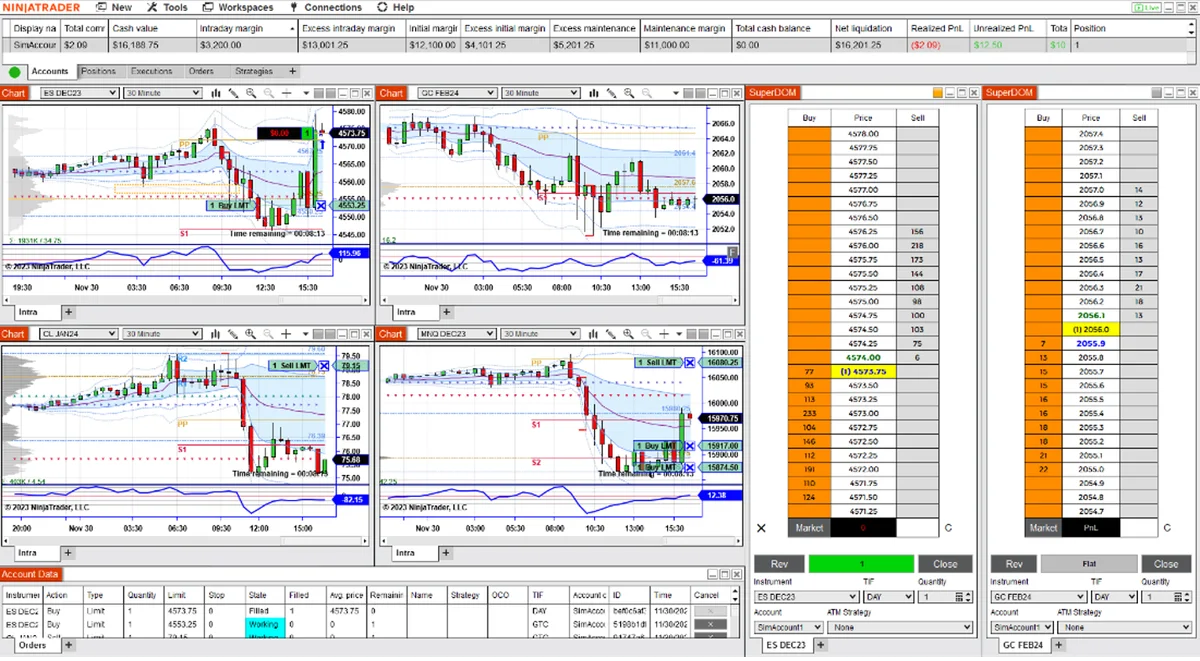
NinjaTrader Market Replay lets you practice order entry against a recorded market session using Playback101. It is useful when you want to repeat an exercise outside market hours. It does not place those practice orders in your prop-firm account or establish how a live Rithmic connection will execute.
NinjaTrader’s Playback Connection requires other connections to be closed. Treat replay practice and trading your issued account as separate sessions.
Market Replay, Historical and Tick Replay
| Option | Its purpose | Choose it when |
|---|---|---|
| Market Replay in the Playback controller | Plays recorded market events, including available Level I and Level II data. | You want to rehearse order entry against a recorded session. |
| Historical in the Playback controller | Plays historical tick data without market depth. | Replay recordings are unavailable and tick-based chart practice is sufficient. |
| Tick Replay in chart or script settings | Recalculates suitable indicators and strategies from historical tick events. | Your script needs that calculation behavior; it is a separate feature from the Playback session. |
NinjaTrader’s Tick Replay reference explains the script requirements. Enabling that setting does not download a Market Replay recording.
Prepare the data and workspace
Follow the official Playback setup instructions:
- Save and close your trading workspaces. Finish managing any active orders or positions before disconnecting. Use a dedicated practice workspace. Check that trade copiers and strategies are stopped before changing connections.
- Open Control Center > Tools > Historical Data. Stay disconnected from Playback while downloading. Turn off Enable market recording for playback under Tools > Options > Market Data for the download.
- Expand Get Market Replay data. Choose an instrument and date, start the download, and leave the window open until it finishes. NinjaTrader supplies a limited selection of instruments and dates.
- Match the chart to the recording. For futures, check the contract month as well as the symbol. A recording for one expiry is not data for another.
For future sessions, you can enable the recorder while receiving live data. Recording market depth also requires a relevant Level II, SuperDOM or FX Pro window to be open and receiving that instrument’s data. Keep recording and downloading as separate tasks. If depth is missing from the live feed before recording, check Level II data access and display settings.
Start a Playback101 practice session
Disconnect your other data connections, then select Control Center > Connections > Playback Connection. The Playback controller supplies the session date, playback type, time position and speed.
Select Market Replay, choose the recorded date range and move to a time covered by the recording. Open the matching chart or order-entry window and confirm Playback101 as the account. Start at normal speed while learning the controls.
A useful exercise is to rehearse one order-entry sequence:
- Select the intended instrument and quantity.
- Place a practice entry with your chosen ATM stop-and-target template.
- Check the resulting orders, then practice changing or cancelling them.
- Record which controls you used correctly and which you want to repeat.
Keep any copier disabled for this exercise. Testing a copier’s account mappings is a different task; see the copy-trading workflow before introducing followers.
Save observations before rewinding
Moving the replay slider during playback or disconnecting resets the playback account’s trade history. Capture any results you want to review before restarting the exercise.
Playback101 takes its account properties from Sim101 when connecting. This includes its commission template for local PnL reports. The Sim101 account guide explains local practice-account settings and how they differ from an issued Rithmic account.
A completed replay exercise shows that you rehearsed the controls under those recorded conditions. NinjaTrader documents immediate, synchronous Playback101 order processing without Sim101’s simulated internet delay. Do not use replay fills to claim a live latency result, guaranteed fill quality, or successful prop-firm risk-rule testing.
When the replay does not behave as expected
| Symptom | Check first |
|---|---|
| Chart stays still | Right-click the Playback controller, open Show Available Data, and match the instrument and recorded time range. |
| No market depth | Check whether you selected Historical mode, or whether Level II data exists in the recording. |
| Download is unavailable | Disconnect Playback before downloading, and check the recorder setting described above. |
| Recording is on another computer | NinjaTrader stores replay files under Documents\NinjaTrader 8\db\replay; use its documented data-file transfer or Backup & Restore options. |
If the live contract changed while you were practicing an older recording, use the futures rollover checks when reopening your trading workspace. Keep the replay chart matched to its recording.
Before returning to your issued account, disconnect Playback, reopen the intended trading workspace and verify the account ID, instrument, quantity and any copier destinations.
PropFirmConnector connects any Rithmic account to NinjaTrader 8. Use the connection guides or Rithmic login guide for that connection step; a successful Playback session does not verify it.
Documentation reviewed October 19, 2026. No live-account or execution-quality test is claimed.
PropFirmConnector publishes this article and sells the Rithmic connection add-on described on this site.