NinjaTrader Futures Rollover: Charts, Orders and Rithmic
Roll futures contracts in NinjaTrader 8, check every Rithmic account and copier destination, and keep chart changes separate from open positions.
On this page
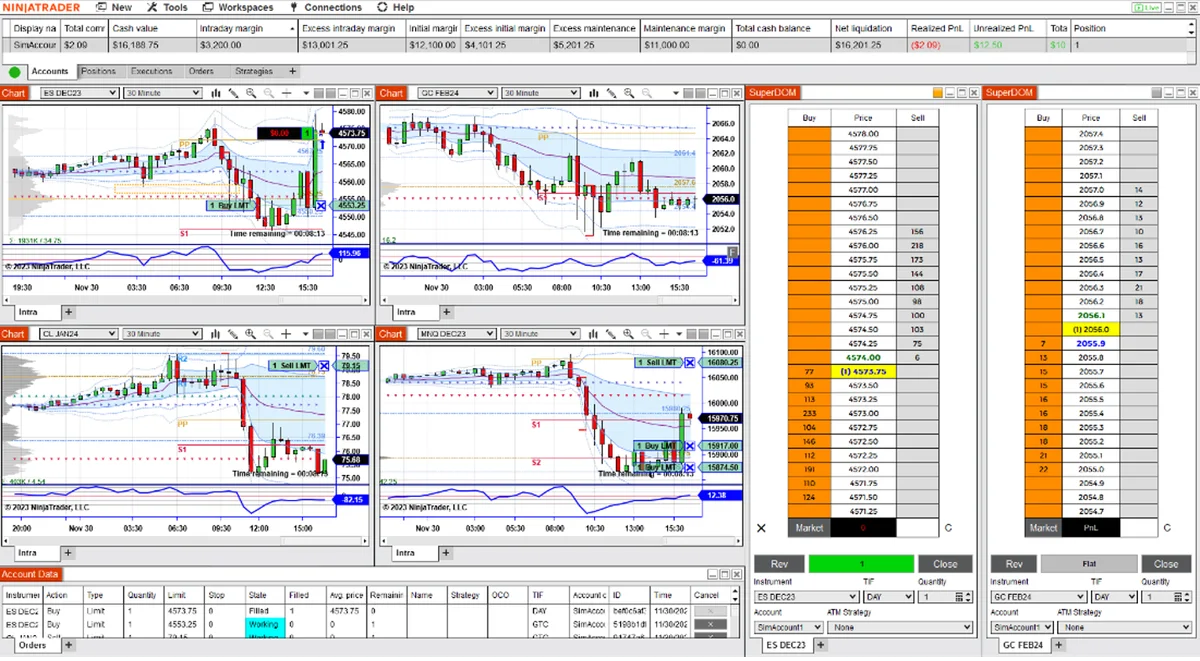
Use Control Center > Tools > Database Management to roll eligible futures instruments to a new expiry. Then check the instrument and account in each order-entry window. Changing the displayed contract does not move an open position to that contract.
For a workspace with several Rithmic accounts, review every account’s orders and positions before resuming trading or copying. A correctly updated leader chart is only one part of that check.
Change the workspace contract
NinjaTrader’s rollover instructions describe two methods:
- Open Tools > Database Management.
- In the futures rollover grid, inspect New Expiry and select Update only for the instruments you intend to change.
- Select Rollover, inspect the affected windows and save the workspaces.
Batch rollover affects instrument lists and windows in all open workspaces. For a partial change, enter the desired expiry in an individual window’s instrument selector instead. Review any workspace you reopen later.
NinjaScript strategies need a separate manual rollover. Do not assume a changed chart has updated a strategy instance.
The grid’s eligibility depends on NinjaTrader’s configured rollover date. Under Tools > Instruments, edit the instrument and inspect Contract months if the expected expiry is unclear. The instrument reference explains that a rollover date means the date to roll into the selected contract month. It also distinguishes contract dates from historical-data offsets; changing offsets is not an order-entry fix.
Check orders and positions separately
Use the Orders tab to inspect the instrument, account, quantity and state of each active order. Check its account and order filters: a filtered grid may hide an order you still need to manage.
Use the Positions tab to inspect the contract, account, connection and position quantity.
| Action | What it does |
|---|---|
| Change a chart or order window’s expiry | Selects another contract for that window. |
| Inspect Orders and Positions | Shows the account activity that needs separate attention. |
| Choose Roll Position in the Positions tab | Sends a market order to exit the current contract and another market order in the next contract. |
Roll Position submits trades. It is not the workspace rollover command or a harmless way to refresh a chart. Review your account’s permitted instruments and holding requirements before deciding how to manage expiring exposure.
An empty new-contract chart does not establish that the old contract is flat. Read the account-level grids and confirm the actual order states.
Verify the multi-account and copier setup
Use this workspace check after changing contracts:
- Account: confirm the intended account ID in each order-entry window. Keep local Sim101 practice distinct from an issued Rithmic account.
- Instrument: check the full symbol and expiry, not just a familiar chart title. If your intended setup copies between different contract sizes, verify that mapping explicitly.
- Copier: pause new copying while checking leader and follower destinations. Review the copier’s own instrument settings; do not assume NinjaTrader’s workspace command updates every third-party tool.
- Orders: inspect each account for old-contract working orders and positions before re-enabling the intended workflow.
These are operational checks, not a claim that every copier behaves alike. The copy-trading guide explains the separate connection, copying and account-policy requirements.
PropFirmConnector connects any Rithmic account to NinjaTrader 8. It supplies the connection layer; contract selection and copier configuration remain separate tasks. Use the connection guides if an account itself needs connecting.
Why the chart can look different after rollover
NinjaTrader’s merge policy controls historical data:
- MergeBackAdjusted combines expiries and adjusts older prices with offsets.
- MergeNonBackAdjusted combines expiries without those price adjustments.
- DoNotMerge loads only the selected expiry’s history.
Those settings explain historical gaps or changed levels; they do not transfer a position. Drawing objects retain their original price levels during rollover, so back-adjusted bars can move relative to drawings. Check levels before using them for a new order.
For Market Replay practice, match the chart to the contract in the recording. A new live-workspace expiry is not a reason to change an older recording’s symbol.
Documentation reviewed October 20, 2026. The workspace image is illustrative; no account rollover, copier or execution-quality test is claimed.
PropFirmConnector publishes this article and sells the Rithmic connection add-on described on this site.