Apex Trader Funding Connection Guide to NinjaTrader 8
Yes. One Apex Rithmic login can use the native NinjaTrader connection, even when that login contains several accounts. Use PropFirmConnector to connect multiple separate Rithmic logins at once, selecting Apex for System. Apex-issued Tradovate credentials use a different native connection.
Check the credentials Apex actually issued before choosing a connection. The steps below cover Rithmic evaluation and Performance Accounts using PropFirmConnector; a separate live-program account should follow its issued onboarding settings.
One Rithmic login
Use the native Rithmic connection documented by Apex. Multiple trading accounts under the same username do not mean you have multiple logins.
PropFirmConnector: Optional for this setup; the native route already supports one login.
Separate Rithmic logins
NinjaTrader permits only one native Rithmic connection to be active at a time.
PropFirmConnector: Connect separate Apex or other Rithmic logins together in one NinjaTrader instance. Follow the steps below for each login.
Apex-issued Tradovate credentials
Enable Multi-provider, restart NinjaTrader, then add a NinjaTrader connection using the Tradovate credentials issued by Apex.
PropFirmConnector: These credentials use the native Tradovate route, not the Rithmic setup below.
Get your trading username and password from the Apex welcome email or the Rithmic Account section of its dashboard. Reveal the password before copying it. Your Apex website login and NinjaTrader application login are separate.
How to connect Apex Trader Funding to NinjaTrader 8 in 5 steps
01
Activate the Apex Rithmic login in R|Trader Pro
In R|Trader Pro, choose APEX for System and the nearest available Gateway. Set Selective Load and Market Data to OFF. Enter the Apex-issued Rithmic credentials, accept both first-login agreements, and choose your actual subscriber classification. Apex instructs traders to keep R|Trader Pro open for balance and drawdown monitoring and backup access.
02
Install PropFirmConnector
From your PropFirmConnector account, download PropFirmConnector.zip and close NinjaTrader completely. Extract the ZIP, then copy NinjaTrader.Custom-pfc.dll to My Documents\NinjaTrader 8\bin\Custom. Start NinjaTrader again and, when your browser opens, click Activate this device.
Start NinjaTrader 8 and sign in with your NinjaTrader account credentials when prompted. These are your NinjaTrader credentials, not the Rithmic username and password issued by Apex Trader Funding.
04
Configure Rithmic for Apex Trader Funding
In the NinjaTrader Control Center, select Connections, then configure. Select Rithmic for NinjaTrader Brokerage from the Available list on the left, enter the Rithmic username and password issued by Apex Trader Funding, give the connection a recognizable name, leave Connect on start up and Plug-in mode off, and select Apex for System.
Connection type
Rithmic for NinjaTrader Brokerage
Connection name
Any name you recognize, such as Apex
User name and password
The Rithmic credentials issued by Apex Trader Funding
Connect on start up
Off
System
Apex
Plug-in mode
Off
The Username and Password are case-sensitive.
05
Connect to Apex Trader Funding
Open Connections again and click the connection name you just created. A green status indicator and the account appearing in NinjaTrader confirm the connection.
An interface illustration of the Apex Trader Funding connection after it turns green.
If the Apex connection is not working
Should Plug-in mode be on or off?
Off. Plug-in mode shares a running R|Trader Pro session with NinjaTrader, which is a different setup from PropFirmConnector’s direct connection. In Connections > Configure, select your Rithmic connection, uncheck Plug-in mode, click OK and connect again. Some firm and Rithmic instructions turn it on for their R|Trader Pro workflow; leave it off for PropFirmConnector.
The connection is green, but the account isn’t in NinjaTrader’s Accounts tab.
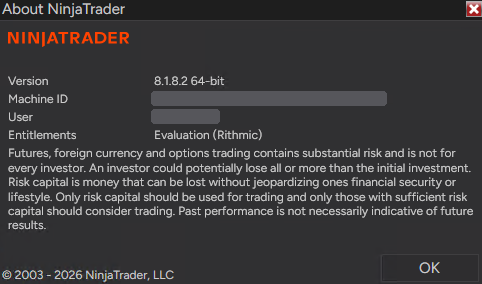
Your NinjaTrader login is probably missing the general Rithmic entitlement, so the Accounts tab often shows only Sim101. In NinjaTrader, open Help > About. The Entitlements line should say Evaluation (Rithmic); if it doesn’t, the connection can turn green without showing your accounts. Older NinjaTrader accounts don’t have this entitlement by default, but newly registered accounts do. The fix is in your NinjaTrader account, not in Rithmic or your firm’s dashboard, and you only do it once. Correct: Entitlements lists Evaluation (Rithmic). Machine ID and User are hidden.
If Evaluation (Rithmic) is missing:
Import this license key at account.ninjatrader.com: click your initials, then Settings > Plans > Import license key. Paste the key, click Import, then close and restart NinjaTrader.
@APE-XTRA-DERF-UNDI-183T-PR45-LW27-63GE
No Import license key button, or still missing? Trading mainly with prop firms? Your NinjaTrader login doesn’t matter, so the fastest fix is to create a new NinjaTrader account with a different email and sign in with it.
Keeping your current login, for example because it has a live account on it? Email platformsupport@ninjatrader.com with your NinjaTrader username and ask them to enable the general Rithmic entitlement.
Use the issued trading credentials, remove surrounding spaces, and confirm that the Apex account is active. If R|Trader Pro still rejects them, resolve the credential or account issue with Apex before changing NinjaTrader settings.
The connection works, but another data session disconnects.
Apex includes one market-data session and offers an additional session separately. Keep Market Data OFF in R|Trader Pro for the monitoring setup above; another platform consuming market data is a separate session.
Only one of several Rithmic logins can stay connected.
Check whether you are using native connections. For simultaneous separate logins, configure each through PropFirmConnector with its own issued credentials and a distinct connection name. Several account numbers under one username remain one login.
Copying trades after connecting Apex accounts
PropFirmConnector supplies the connection; a separate trade copier handles orders.
Confirm that the intended accounts appear before configuring the copier.
Read how prop firm copy trading works
or compare NinjaTrader trade copiers.
For evaluation and Performance Accounts, Section 11 of Apex’s user agreement
permits copying manually entered orders between accounts solely owned and controlled by the same trader.
Receiving accounts must match the source orders exactly; automated source strategies, separately altered follower orders,
and copying involving other traders’ accounts are prohibited. Do not share account activity or signals for others to copy.
Check the current agreement and rules for your account before enabling a copier.
QCan PropFirmConnector convert an Apex Tradovate account to Rithmic?
No. PropFirmConnector connects issued Rithmic credentials; it does not change the account provider. Apex says accounts cannot be converted between Rithmic, Tradovate and WealthCharts. Changing platforms requires a new plan for that platform.