Stop Market vs Stop Limit Orders in NinjaTrader
Compare NinjaTrader stop-market and stop-limit orders, check stop and limit prices, and verify working orders on each Rithmic account.
On this page
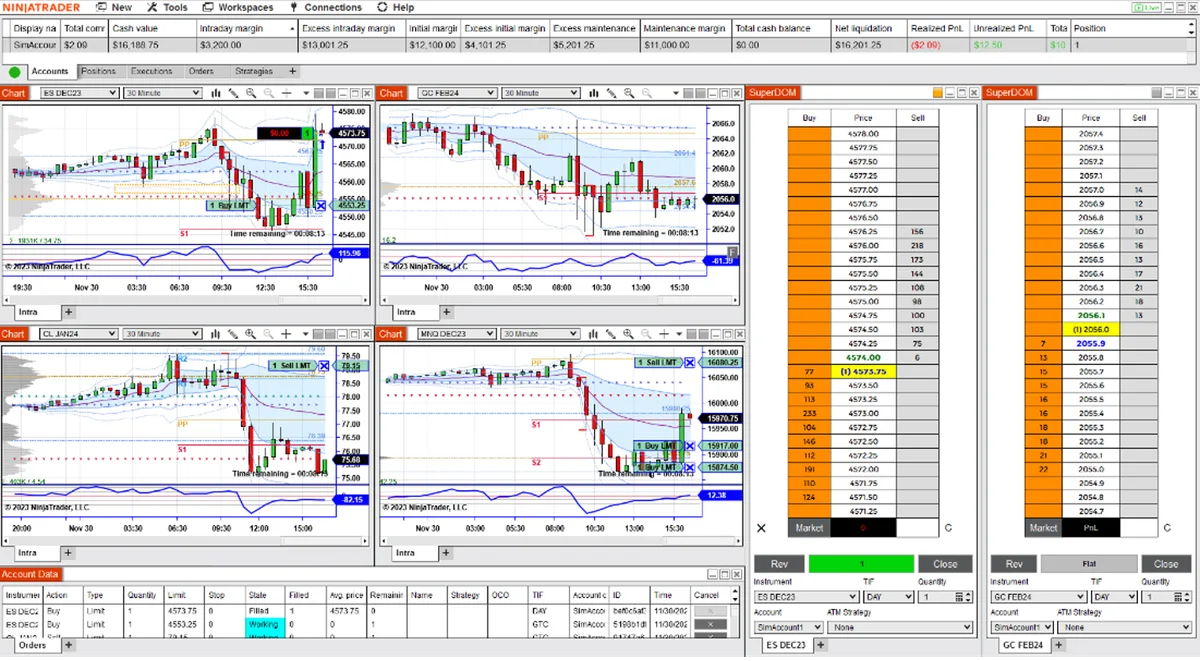
A stop-market order seeks execution after its trigger; a stop-limit order adds a price limit and can remain unfilled after triggering. Neither makes the stop price a guaranteed exit price. In NinjaTrader, check both the order type and the account receiving it before submitting an entry or protective exit.
The stop price and limit price do different jobs
| Order type | After the trigger | Main tradeoff |
|---|---|---|
| Stop market | Seeks execution at available market prices, subject to the route’s rules. | The fill price can differ from the stop price. |
| Stop limit | Becomes a limit order. A buy fills at the limit or lower; a sell at the limit or higher. | Some or all of the quantity can remain unfilled. |
The stop price activates a stop order. The limit price constrains execution. A plain limit order has no separate stop trigger. CME’s order-type explanation describes that distinction and the risk of an unfilled limit order when prices move away.
Consider a hypothetical sell stop-limit with a 100.00 stop and 99.50 limit. After the stop triggers, the order can sell at 99.50 or higher. If available buyers move below 99.50 before it fills, the unfilled quantity can remain working while the position is still open. The 0.50 gap between those prices is not a maximum loss on the position.
That example illustrates order mechanics, not a recommended price or a measured fill.
Stop market does not mean an unlimited fill guarantee
Exchange rules matter too. CME Globex documents stop orders with protection, which execute only within a defined protection range. Quantity that cannot execute remains on the book at the protection limit. This is different from choosing your own stop-limit offset.
Read the CME protection rules and your provider’s order handling. Do not infer that NinjaTrader’s Stop Market label promises a complete fill at any price, or exactly at your stop.
Check the stop-limit offset before submitting
For practice, first select the intended NinjaTrader simulation account and disable copying to firm or live accounts.
In Chart Trader:
- Confirm the instrument, account, quantity and time in force. Review any selected ATM stop-and-target template separately.
- Right-click at the intended price and choose the relevant stop order. The available menu choices depend on which side of the market you click.
- For Stop Limit, review the numeric limit offset in ticks before pressing the checkmark. A positive offset places a buy limit above its stop, or a sell limit below its stop.
- Inspect the submitted order’s actual Stop and Limit values in the Orders tab.
NinjaTrader documents the Chart Trader offset control. An offset is a price distance; it does not guarantee execution.
A negative offset changes the workflow. NinjaTrader turns that order into a locally simulated stop. Its Simulated Stop documentation describes a volume-trigger condition and dependence on the PC, connection and market data. “Simulated Stop” names an order feature; it does not mean you have selected Sim101.
Verify the result on each Rithmic account
Use the Orders tab to inspect Account Display Name, Instrument, Type, Quantity, Stop, Limit, State, Filled and Remaining. Filter by account when reviewing several accounts. A working order is not evidence that the position has closed; check its fill and remaining quantity.
The SuperDOM display uses STP for stop-market and SLM for stop-limit orders, and shows orders for the selected account and instrument. Seeing one account’s stop does not establish what exists on another.
For Rithmic, NinjaTrader’s order-location reference places accepted or working orders at the brokerage, exchange or Rithmic server, depending on the order type. Locally simulated stops are a separate case. Check ongoing ATM and copier management separately before relying on a disconnected desktop.
PropFirmConnector connects any Rithmic account to NinjaTrader 8. It supplies the connection, not a substitute trade copier. Use the connection guides for account setup and the copy-trading workflow for leader/follower configuration; verify the actual orders on each account.
Documentation reviewed October 27, 2026. Examples are hypothetical; no live-account, fill-quality or disconnect test is claimed.
PropFirmConnector publishes this article and sells the Rithmic connection add-on described on this site.