My Funded Futures Connection Guide to NinjaTrader 8
For MFFU’s documented NinjaTrader route, use the trading credentials in your MFFU dashboard and the My NinjaTrader connection; PropFirmConnector is not needed. The Rithmic steps below apply only if MFFU confirms your previously issued Rithmic account is still active. Its current platform documentation does not describe a new Rithmic route.
System: Rithmic Paper Trading (Chicago) Last verified:
PropFirmConnector is an independent third-party add-on and is not affiliated with or endorsed by My Funded Futures, NinjaTrader, or Rithmic.
Choose your My Funded Futures account route
Choose the row that matches the trading credentials MFFU issued. A platform name alone does not identify the feed. The Rithmic walkthrough is conditional; the current native NinjaTrader instructions are linked separately.
MFFU’s documented NinjaTrader account
Use the dashboard-issued trading credentials. In Connections > configure, add NinjaTrader, select My NinjaTrader and set account type to Simulation, as instructed by MFFU.
PropFirmConnector: Not needed for this native route. MFFU’s data-activation guide directs these users to sign their market-data agreement in Tradovate.
Previously issued Rithmic evaluation or simulated account
Current MFFU documentation does not establish a native NinjaTrader route for this older account type. Confirm that MFFU still provides access to your specific login.
PropFirmConnector: For an active Rithmic account using the historical paper-trading route, follow the five steps below with Rithmic Paper Trading (Chicago). Confirm the System with the issuer before connecting.
MFFU Quantower account on dxFeed
MFFU’s Quantower instructions select dxFeed, then MyFundedFutures, using the credentials emailed by the firm.
PropFirmConnector: Does not convert dxFeed credentials into a Rithmic connection. Follow the setup for the account you purchased.
Match your credentials to the account route
Check the provider named in your account details before entering a password. For the native route, use MFFU’s NinjaTrader instructions linked below. For the conditional Rithmic walkthrough, use the issued Rithmic trading username and password, not a website login. Confirm the current account stage and server with MFFU if older instructions conflict.
How to connect My Funded Futures to NinjaTrader 8 in 5 steps
01
Confirm your older Rithmic account is active
These steps are for a previously issued Rithmic evaluation or simulated account. Ask MFFU to confirm the trading login and paper-trading server if access is uncertain. Sign in to R|Trader Pro on the confirmed System and gateway, accept pending agreements and check that the expected account appears. A failed login is a troubleshooting result, not proof that the account was closed. Continue only after the account is available.
02
Install PropFirmConnector
From your PropFirmConnector account, download PropFirmConnector.zip and close NinjaTrader completely. Extract the ZIP, then copy NinjaTrader.Custom-pfc.dll to My Documents\NinjaTrader 8\bin\Custom. Start NinjaTrader again and, when your browser opens, click Activate this device.
Start NinjaTrader 8 and sign in with your NinjaTrader account credentials when prompted. These are your NinjaTrader credentials, not the Rithmic username and password issued by My Funded Futures.
04
Configure Rithmic for My Funded Futures
In the NinjaTrader Control Center, select Connections, then configure. Select Rithmic for NinjaTrader Brokerage from the Available list on the left, enter the Rithmic username and password issued by My Funded Futures, give the connection a recognizable name, leave Connect on start up and Plug-in mode off, and select Rithmic Paper Trading (Chicago) for System.
Connection type
Rithmic for NinjaTrader Brokerage
Connection name
Any name you recognize, such as My Funded Futures
User name and password
The Rithmic credentials issued by My Funded Futures
Connect on start up
Off
System
Rithmic Paper Trading (Chicago)
Plug-in mode
Off
The Username and Password are case-sensitive.
05
Connect to My Funded Futures
Open Connections again and click the connection name you just created. A green status indicator and the account appearing in NinjaTrader confirm the connection.
An interface illustration of the My Funded Futures connection after it turns green.
If your My Funded Futures connection is not working
Should Plug-in mode be on or off?
Off. Plug-in mode shares a running R|Trader Pro session with NinjaTrader, which is a different setup from PropFirmConnector’s direct connection. In Connections > Configure, select your Rithmic connection, uncheck Plug-in mode, click OK and connect again. Some firm and Rithmic instructions turn it on for their R|Trader Pro workflow; leave it off for PropFirmConnector.
The connection is green, but the account isn’t in NinjaTrader’s Accounts tab.
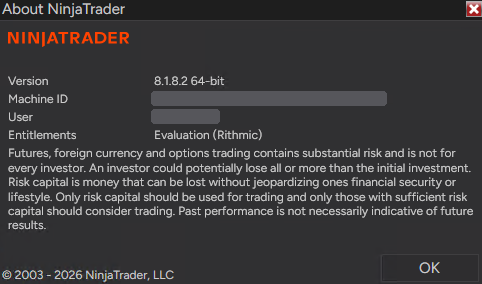
Your NinjaTrader login is probably missing the general Rithmic entitlement, so the Accounts tab often shows only Sim101. In NinjaTrader, open Help > About. The Entitlements line should say Evaluation (Rithmic); if it doesn’t, the connection can turn green without showing your accounts. Older NinjaTrader accounts don’t have this entitlement by default, but newly registered accounts do. The fix is in your NinjaTrader account, not in Rithmic or your firm’s dashboard, and you only do it once. Correct: Entitlements lists Evaluation (Rithmic). Machine ID and User are hidden.
If Evaluation (Rithmic) is missing:
Import this license key at account.ninjatrader.com: click your initials, then Settings > Plans > Import license key. Paste the key, click Import, then close and restart NinjaTrader.
@APE-XTRA-DERF-UNDI-183T-PR45-LW27-63GE
No Import license key button, or still missing? Trading mainly with prop firms? Your NinjaTrader login doesn’t matter, so the fastest fix is to create a new NinjaTrader account with a different email and sign in with it.
Keeping your current login, for example because it has a live account on it? Email platformsupport@ninjatrader.com with your NinjaTrader username and ask them to enable the general Rithmic entitlement.
I have MFFU NinjaTrader credentials, but a Rithmic connection rejects them.
Follow MFFU’s native instructions: add the NinjaTrader connection, enter the issued trading credentials and use Simulation for the account type covered by that guide. The Rithmic connection form is for a different account route.
My native NinjaTrader account connects, but market data is missing.
MFFU’s activation instructions direct NinjaTrader, Tradovate and TradingView users to sign the market-data agreement at trader.tradovate.com. If data remains unavailable after activation, ask MFFU to check the subscription and account permissions.
My previously issued Rithmic login fails in R|Trader Pro.
Check the username, password, confirmed System and gateway, then record the exact error. Ask MFFU to confirm account status and Rithmic access. A rejected login alone does not establish that access has ended; PropFirmConnector cannot restore access disabled by the issuer.
R|Trader Pro opens, but the trading account is missing.
Authentication and account assignment are separate checks. Ask MFFU to confirm which account belongs to that login. Do not choose an unrelated practice account or change providers just because the expected account is absent.
Correction — September 30, 2026: the earlier troubleshooting text treated a failed Rithmic login as proof that no active Rithmic account existed. A failed login does not establish account status; MFFU must confirm the login’s access.
QDo the Simulation and Paper Trading settings cover a real live account?
No. The settings here describe MFFU’s published Simulation setup and the conditional older Rithmic paper-trading route. A real live account needs its own onboarding instructions. This guide does not establish that MFFU currently issues real live Rithmic accounts.