Connection guide

P1 Futures Connection Guide to NinjaTrader 8

Firm website: p1futures.com

Quick answer

Yes. PropFirmConnector enables P1 Futures Rithmic accounts to connect to NinjaTrader 8. Install and activate the add-on, choose Rithmic for NinjaTrader Brokerage, select Rithmic Paper Trading (Chicago), and enter the account’s Rithmic username and password.

Account feed: Rithmic System: Rithmic Paper Trading (Chicago) Last verified:

This guide covers how to connect P1 Futures Rithmic accounts to NinjaTrader. PropFirmConnector is an independent third-party add-on and is not affiliated with or endorsed by P1 Futures, NinjaTrader, or Rithmic.

No license yet? Start the free 7-day trial — then follow the steps below.

Your P1 Futures Rithmic account

P1 Futures identifies its trading platform as TradeSea powered by Rithmic. PropFirmConnector enables you to use the Rithmic trading account in NinjaTrader 8 with Rithmic Paper Trading (Chicago).

Start with the firm-issued Rithmic username and password. The platform sign-in used to open TradeSea and the underlying Rithmic login may be different; the trading login is what belongs in NinjaTrader’s Rithmic connection form.

Sign in to your P1 Futures dashboard and obtain the Rithmic trading username and password issued for the account. If the account details show only a TradeSea sign-in, ask P1 Futures for the underlying Rithmic credentials. Do not substitute your P1 website password.

Open P1 Futures dashboard (opens in a new tab)
Step-by-step setup

P1 Futures Connection Guide to NinjaTrader 8

  1. Step 1 One-time activation

    Get your P1 Futures Rithmic login and activate the account

    Sign in to your P1 Futures dashboard and obtain the Rithmic trading username and password issued for the account. If the account details show only a TradeSea sign-in, ask P1 Futures for the underlying Rithmic credentials. Do not substitute your P1 website password. Sign in to R|Trader Pro on Rithmic Paper Trading with the Chicago gateway, accept any pending market-data agreements, and confirm your expected account appears. R|Trader Pro does not need to remain open for the direct PropFirmConnector setup.

  2. Step 2

    Install PropFirmConnector

    From your PropFirmConnector account, download PropFirmConnector.zip and close NinjaTrader completely. Extract the ZIP, then copy NinjaTrader.Custom-pfc.dll to My Documents\NinjaTrader 8\bin\Custom. Start NinjaTrader again and, when your browser opens, click Activate this device.

    Copy the DLL to My Documents\NinjaTrader 8\bin\Custom
    Open your account downloads
  3. Step 3

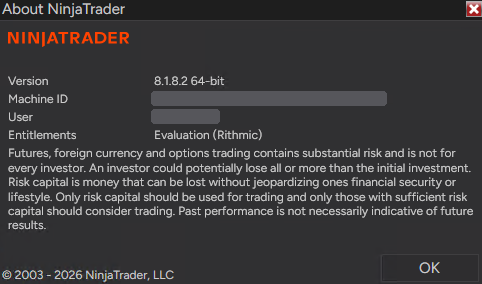
    Open NinjaTrader 8 and sign in

    Start NinjaTrader 8 and sign in with your NinjaTrader account credentials when prompted. These are your NinjaTrader credentials, not the Rithmic username and password issued by P1 Futures.

  4. Step 4

    Configure Rithmic for P1 Futures

    In NinjaTrader Control Center, open Connections, then configure. Select Rithmic for NinjaTrader Brokerage, name the connection P1 Futures, enter the firm-issued Rithmic username and password, and set System to Rithmic Paper Trading (Chicago). Leave Connect on start up and Plug-in mode off, then click OK.

    In the Control Center, click Connections, then configure.
  5. Step 5

    Connect to P1 Futures

    Open Connections again and click the connection name you just created. A green status indicator and the account appearing in NinjaTrader confirm the connection.

    Open Connections and click the name you created. This interface illustration uses P1 Futures and shows the green connected indicator. It is a setup example, not evidence of a live account test.

Enlarged guide image

If your P1 Futures connection is not working

The Rithmic connection rejects my login.
Use the Rithmic trading credentials issued by P1 Futures, preserving capitalization and avoiding extra spaces. A website or TradeSea sign-in is not necessarily the Rithmic trading login. If only platform sign-in details are available, ask the firm for the underlying Rithmic credentials before continuing.
I cannot find P1 Futures in the System dropdown.
Choose Rithmic Paper Trading (Chicago). The firm name is the name you give your connection, not a required named System option.
The account or market data is missing.
Check that the active P1 Futures account appears in R|Trader Pro and that all required agreements are complete. If it is missing there too, ask the firm to check account provisioning. If it appears there, verify PropFirmConnector device activation, the saved credentials, and the System setting in NinjaTrader.

P1’s public platform information identifies the feed but does not document the exact dashboard location of the Rithmic credentials. Ask P1 support for those credentials if they are not shown for your account.

Official P1 Futures resources

FAQ

P1 Futures + NinjaTrader questions

Q Can I use my P1 Futures Rithmic account in NinjaTrader 8?

Yes. PropFirmConnector connects the Rithmic trading login issued by P1 Futures to NinjaTrader 8 using Rithmic Paper Trading (Chicago).

Q Which System do I select for P1 Futures?

Select Rithmic Paper Trading (Chicago) in NinjaTrader. In R|Trader Pro, use Rithmic Paper Trading and the Chicago gateway.

Q Which P1 Futures credentials do I need?

Sign in to your P1 Futures dashboard and obtain the Rithmic trading username and password issued for the account. If the account details show only a TradeSea sign-in, ask P1 Futures for the underlying Rithmic credentials. Do not substitute your P1 website password.

Q Can I connect several P1 Futures Rithmic logins at once?

Yes. PropFirmConnector can keep separate Rithmic logins connected in one NinjaTrader instance, including logins from other firms. Give each saved connection a distinct name. Multiple accounts under one Rithmic username use that same connection.

Q Is PropFirmConnector affiliated with P1 Futures or TradeSea?

No. PropFirmConnector is an independent NinjaTrader add-on and is not affiliated with or endorsed by P1 Futures, TradeSea, NinjaTrader, or Rithmic.

Authenticator verification

Enter your authentication code

Enter the current 6-digit code from your authenticator app.