Yes, with PropFirmConnector. Voltra Funding accounts on its Rithmic server connect to NinjaTrader 8 only through the PropFirmConnector add-on. Use the Rithmic User Id and password Voltra emails you, also shown under Credentials in your Voltra dashboard, and select Rithmic Paper Trading (Chicago) for System.
Account feed: RithmicSystem: Rithmic Paper Trading (Chicago) Last verified:
This guide covers how to connect Voltra Funding Rithmic accounts to NinjaTrader. PropFirmConnector
is an independent third-party add-on and is not affiliated with or endorsed by Voltra Funding,
NinjaTrader, or Rithmic.
Before you start
Your Voltra Funding Rithmic account and login
Voltra Funding (voltrafunding.com) is a simulated futures prop firm: you buy an evaluation, and passing it moves you to a simulated funded account. At checkout you choose the Rithmic or Ironbeam server; Rithmic accounts use Rithmic Paper Trading (Chicago) with the User Id Voltra emails you.
Voltra lists NinjaTrader among its Rithmic platforms, but its accounts connect to NinjaTrader 8 only through PropFirmConnector. The add-on uses the same Rithmic login and System and runs it alongside other firms’ Rithmic logins in one NinjaTrader instance.
Voltra account on the Rithmic server (evaluation and simulated funded)
Not available: Voltra’s help notes NinjaTrader connection issues with Rithmic and recommends Quantower or R|Trader Pro meanwhile.
PropFirmConnector: Required for NinjaTrader 8. Select Rithmic Paper Trading (Chicago) and sign in with your Voltra User Id and password.
Voltra account on the Ironbeam server
Voltra’s Ironbeam accounts trade through TradingView or the Ironbeam web platform.
PropFirmConnector: Not applicable: PropFirmConnector connects Rithmic logins only. Choose the Rithmic server at checkout to trade in NinjaTrader.
Where to find your Voltra Rithmic login
Voltra emails your Rithmic User Id (for example VLTRU000123) and password as soon as the account is created, and your Voltra dashboard shows them under Credentials. Use the User Id, not your email: the email and password you use to sign in to voltrafunding.com are a separate login.
How to connect Voltra Funding to NinjaTrader 8 in 5 steps
01
Step 1One-time activation
Activate your Voltra Rithmic login
Sign in to R|Trader Pro once with the User Id and password Voltra emailed you, entered in both the Orders and Market Data sections, with System Rithmic Paper Trading and Gateway Chicago Area. Sign the two Rithmic market-data agreements and choose Non-Professional, as Voltra instructs. Then close R|Trader Pro; the direct PropFirmConnector setup below does not require it to stay open.
Sign in with the Rithmic credentials issued by Voltra Funding, then accept
any required market-data agreements.
02
Step 2
Install PropFirmConnector
From your PropFirmConnector account, download PropFirmConnector.zip and close NinjaTrader completely. Extract the ZIP, then copy NinjaTrader.Custom-pfc.dll to My Documents\NinjaTrader 8\bin\Custom. Start NinjaTrader again and, when your browser opens, click Activate this device.
Copy the DLL toMy Documents\NinjaTrader 8\bin\Custom
Start NinjaTrader 8 and sign in with your NinjaTrader account credentials when prompted. These are your NinjaTrader credentials, not the Rithmic username and password issued by Voltra Funding.
Use your NinjaTrader account credentials on this screen.
04
Step 4
Configure Rithmic for Voltra Funding
In the NinjaTrader Control Center, select Connections, then configure. Select Rithmic for NinjaTrader Brokerage from the Available list on the left, enter the Rithmic username and password issued by Voltra Funding, give the connection a recognizable name, leave Connect on start up and Plug-in mode off, and select Rithmic Paper Trading (Chicago) for System.
In the Control Center, click Connections, then configure.
Use these connection settings
Connection type
Rithmic for NinjaTrader Brokerage
Connection name
Any name you recognize, such as Voltra
User name and password
The Rithmic credentials issued by Voltra Funding
Connect on start up
Off
System
Rithmic Paper Trading (Chicago)
Plug-in mode
Off
The Username and Password are case-sensitive.
05
Step 5
Connect to Voltra Funding
Open Connections again and click the connection name you just created. A green status indicator and the account appearing in NinjaTrader confirm the connection.
Open Connections and click the name you created. This interface illustration uses
Voltra Funding and shows the green connected indicator.
It is a setup example, not evidence of a live account test.
If your Voltra Funding connection is not working
Should Plug-in mode be on or off?
Off. Plug-in mode shares a running R|Trader Pro session with NinjaTrader, which is a different setup from PropFirmConnector’s direct connection. In Connections > Configure, select your Rithmic connection, uncheck Plug-in mode, click OK and connect again. Some firm and Rithmic instructions turn it on for their R|Trader Pro workflow; leave it off for PropFirmConnector.
The connection is green, but the account isn’t in NinjaTrader’s Accounts tab.
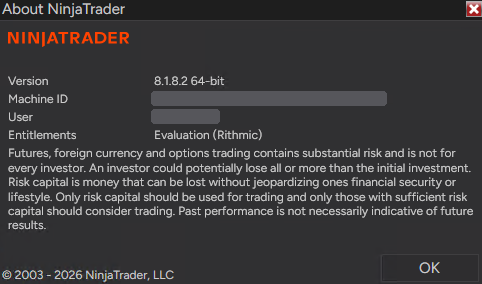
Your NinjaTrader account may be missing the general Rithmic entitlement. In NinjaTrader, open Help > About. The Entitlements line should say Evaluation (Rithmic); if it doesn’t, the connection can turn green without showing your accounts. Older NinjaTrader accounts don’t have this entitlement by default, but newly registered accounts do. Help > About in NinjaTrader. Entitlements shows Evaluation (Rithmic) when the entitlement is enabled. Machine ID and User are hidden.
If Evaluation (Rithmic) is missing:
Trading mainly with prop firms? Your NinjaTrader login doesn’t matter, so the fastest fix is to create a new NinjaTrader account with a different email and sign in with it.
Keeping your current login, for example because it has a live account on it? Email platformsupport@ninjatrader.com with your NinjaTrader username and ask them to enable the general Rithmic entitlement.
Rithmic rejects your Voltra login.
Voltra lists the usual causes: the wrong System (it must be Rithmic Paper Trading), your email entered instead of your User Id, or unsigned market-data agreements. Copy the User Id and password from Credentials in your Voltra dashboard and retry.
NinjaTrader’s own Rithmic connection fails for your Voltra account.
Voltra notes NinjaTrader connection issues with Rithmic. Connect through PropFirmConnector instead: install and activate the add-on, then use System Rithmic Paper Trading (Chicago) with your Voltra User Id.
Your account is on Voltra’s Ironbeam server.
Voltra sets the server at checkout. Ironbeam accounts trade through TradingView (Broker Ironbeam, Environment Demo, your account number as the username) or the Ironbeam web platform; PropFirmConnector connects Rithmic logins only.
You forgot your Rithmic password.
Your Voltra dashboard shows your credentials under Credentials, and Voltra support can reset the password.
Yes, with PropFirmConnector. Voltra accounts on the Rithmic server connect to NinjaTrader 8 through the add-on, with System Rithmic Paper Trading (Chicago).
QWhich Rithmic System does Voltra Funding use?
Rithmic Paper Trading (Chicago), with the Chicago Area gateway in R|Trader Pro. Every Voltra account is simulated, so there is no Rithmic 01 route.
QWhere do I find my Voltra Rithmic login?
In the email Voltra sends when your account is created, and under Credentials in your Voltra dashboard. The User Id looks like VLTRU000123; do not use your email.
QDo I need a paid NinjaTrader license for Voltra Funding?
No. With PropFirmConnector, a free NinjaTrader account works for your Voltra Rithmic login.
QCan I run Voltra Funding alongside other prop firms in NinjaTrader?
Yes. PropFirmConnector keeps your Voltra login connected alongside other firms’ Rithmic logins, such as Apex, Lucid Rithmic or Tradeify Rithmic, in one NinjaTrader instance.
QIs PropFirmConnector affiliated with Voltra Funding?
No. PropFirmConnector is an independent NinjaTrader add-on and is not affiliated with or endorsed by Voltra Funding, NinjaTrader, or Rithmic.