How to Share a NinjaTrader Drawing Across Charts
Place a drawing on one NinjaTrader 8 chart, share it with charts of the same futures contract, and check the display settings when a line is missing.
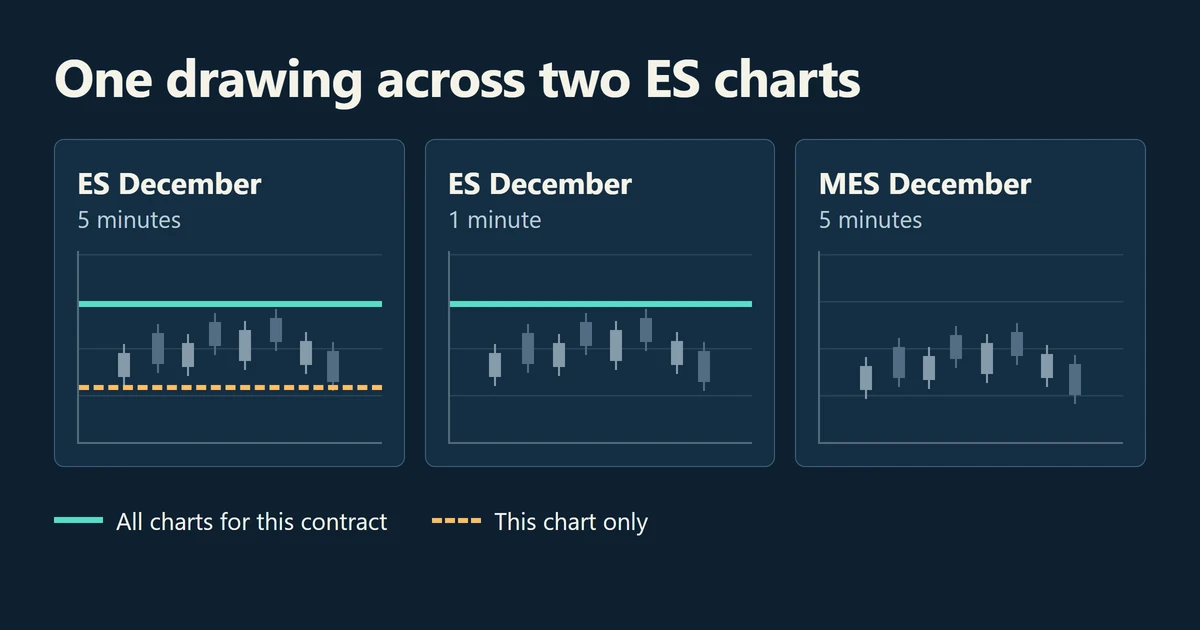
To share a line, open its Properties and change Attach to from the current chart series to the instrument marked (All charts). You can then move between intervals and see the same drawing on charts for that contract.
Imagine marking yesterday’s high on a five-minute ES December chart. You want the same level on a one-minute ES December chart, while a second line marking a five-minute pattern belongs only on the first chart. Give each drawing its own attachment. A chart of MES December uses a different instrument.
Place and lock a level
- Right-click the chart background, open Drawing Tools and select Horizontal Line. Click the price level you want to mark.
- Select the line so its anchor appears. Right-click it and choose Properties. If the Drawing Objects window lists several items, select your line in Configured before editing it.
- Set the line’s appearance so you can recognize it on the other chart. Select Locked when you want to protect its position from an accidental drag. You can unlock it later to move it.
For a line anchored to a bar or a price tick, choose the relevant Snap Mode from the Drawing Tools menu before placing the anchor. Bar aligns the horizontal position to a bar interval. Tick rounds the price to a tick. Bar And Tick applies both rules. NinjaTrader drawing tools and object properties
Show the same drawing on another chart
Open the line’s Properties and find Attach to. The example below assumes both ES charts display the same contract and use the same price-scale alignment.
| What you want | What to select or check |
|---|---|
| A level on the five-minute ES chart only | Leave the line attached to that chart’s ES series. |
| The same level on five-minute and one-minute ES charts | Choose the ES instrument entry marked (All charts). Open the second chart on the same expiry. |
| A separate annotation for MES | Draw it on the MES chart. ES and MES have separate instrument entries. |
A global drawing is available to new charts you open for the same instrument. NinjaTrader retains it when all charts for that instrument are closed. If a chart contains multiple price series or indicators, check which series or plot the object is attached to. The multiple Data Series guide shows where to inspect each series.
Find a missing drawing
Check these settings in order before placing a second copy of the line.
- Instrument and expiry. Read the full contract on both charts. A matching root symbol alone is insufficient after a futures rollover.
- Chart display. On the target chart, open Data Series, select the intended series and enable Show global draw objects. Check that the two plots use matching scale justification. On the source object, verify that Visible is enabled. NinjaTrader Data Series settings
- Workspace. If the second chart is in another open workspace, go to Control Center > Tools > Settings > General and check Global drawing objects across workspaces. NinjaTrader global drawing settings
If you want a line with the same style at a different price, save a template from the drawing object’s Properties window and apply it to another drawing of the same type. The style template can carry color, dash style and width. The new object gets its own anchors. A chart template is for reusing the chart layout and indicator settings. NinjaTrader chart template reference
A visible level can also be an input to a chart alert. To receive a notification, configure a condition and an action in the Alerts window. NinjaTrader alert configuration
Drawing scope is a chart setting. For the separate task of connecting a trading account, PropFirmConnector connects any Rithmic account to NinjaTrader 8. The connection guides explain the account setup.
Documentation reviewed November 19, 2026.
PropFirmConnector publishes this article and sells the Rithmic connection add-on described on this site.