Set NinjaTrader Alerts for a Rithmic Futures Workspace
Configure NinjaTrader price alerts, choose how they rearm, and check the Alerts Log when a notification is missing in your Rithmic futures workspace.
On this page
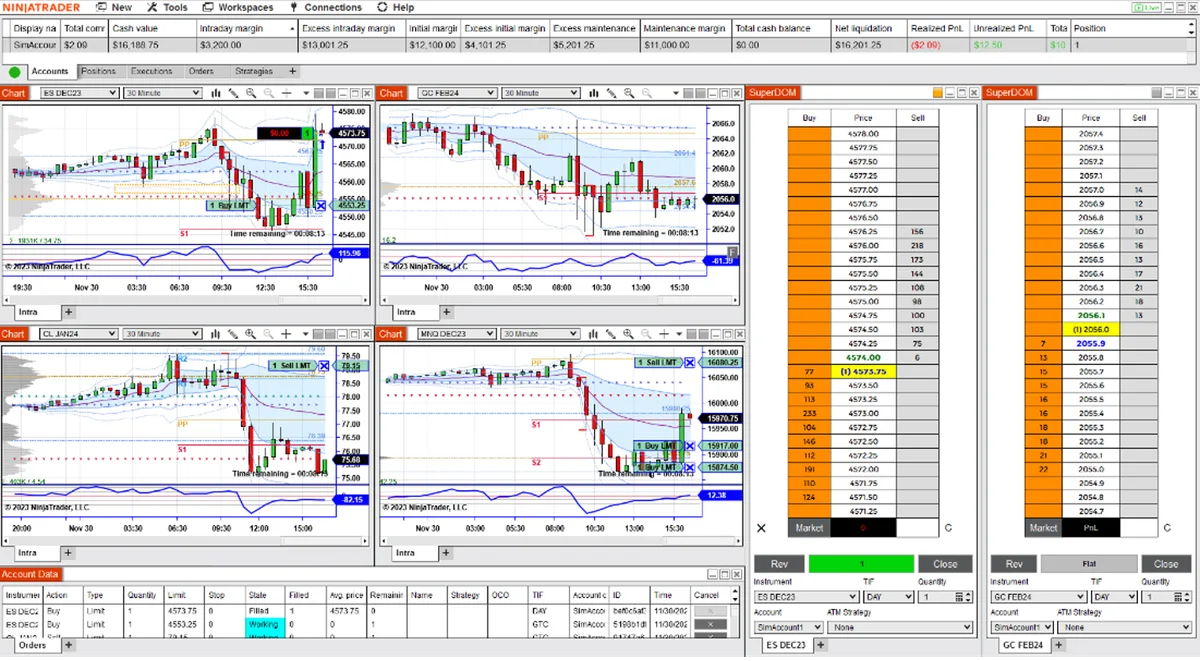
Right-click a NinjaTrader chart or Market Analyzer and select Alerts to create a condition and choose what happens when it is met. For a notification, use a sound or pop-up action and inspect the Alerts Log.
NinjaTrader also offers an order-submission action. This walkthrough uses notifications only. A sound or message does not place a protective stop, close a position or confirm an order on another account.
Choose the window that has the information
The Alerts dialog belongs to the tab from which you open it. An alert configured on one chart tab will not appear in another tab’s dialog. Open the intended tab before adding or editing a rule.
A chart can supply price series, indicators and drawing tools already on that chart. Market Analyzer exposes its configured columns; use the watchlist setup guide if the column you need is missing.
NinjaTrader’s alert overview distinguishes their inputs: chart conditions can compare current information with historical bars, while Market Analyzer alerts use real-time values. Alerts themselves operate in real time. Do not expect opening a chart to generate a historical log of every past signal.
Build one notification first
Start on a chart containing one futures contract so the instrument and data series are easy to identify.
- Open Alerts, select add, give the alert a recognizable name and check Enabled.
- Under Conditions, select add to open the Condition Builder.
- Define the comparison, then return to the alert properties.
- Enter a clear Message. Expand Actions, select add and choose Play Sound or Pop Up Dialog. Inspect the action list before enabling the alert; leave Submit Order out of this notification.
- Choose a Rearm type deliberately, then apply the configuration.
These controls are documented in Configuring Alerts.
For a simple price condition, select the chart’s Data Series with Price type: Close on the left, choose greater, and compare it with a Numeric value on the right. Enter your chosen observation level. This example describes a comparison, not a recommended trade or price target.
The Condition Builder reference explains why the two sides must return comparable values: price belongs with a number, not a time value. For an indicator condition, inspect its selected plot and parameters as well.
A greater comparison asks whether a value is above a level. A Cross Above comparison instead checks for a crossover within its lookback; NinjaTrader requires that lookback to be at least one. Choose the operator that matches the event you want to observe.
Decide when the alert can fire again
The rearm settings control repeat eligibility:
| Rearm type | Behavior |
|---|---|
| Never | Fires once without rearming. |
| On timer | Becomes eligible again after the configured seconds. |
| On condition reversed | Rearms when the condition stops being true. |
| On bar close | Rearms at the next close of the condition’s data series; an eligible column must have a data series. |
Rearming is not a promise that a new alert will fire; the condition still matters. With multiple conditions, If Any accepts one matching condition, while If All requires every condition to match.
Find a missing notification
Open Control Center > New > Alerts Log, as described in the Alerts Log overview. Find the instrument, source, time and message for the event.
If an entry is present but you heard nothing, inspect the configured sound action and the computer’s audio output. If no entry is visible:
- Check the log’s Instrument Type, Priority and Source filters.
- Confirm the log is receiving the workspace you are inspecting. Its default scope is its parent workspace.
- Return to the source tab and check the alert’s condition and repeat behavior.
- Confirm the relevant prices are updating. Use the Rithmic login and blank-chart checks for a broader data problem.
The log-window guide covers filters and the option to receive alerts from all active workspaces, which excludes NinjaScript objects. Double-click a log entry or choose Go To Alert to locate its source.
NinjaTrader documents alert checks at 200-millisecond intervals and cautions against relying on alerts during accelerated Playback. That interval describes alert evaluation, not measured feed latency or guaranteed delivery. The Playback guide covers that separate practice environment.
Keep account actions separate
PropFirmConnector connects any Rithmic account to NinjaTrader 8. The connection directory contains setup walkthroughs, not an eligibility list.
PFC supplies connections; a separate trade copier handles copying. An alert message is evidence of a triggered condition, not proof that a follower received an order. Inspect actual orders and positions by account. The Chart Trader guide explains the selected account and instrument scope.
Documentation reviewed November 2, 2026. The workspace artwork is illustrative, not an Alerts dialog screenshot or evidence of an account test.
PropFirmConnector publishes this article and sells the Rithmic connection add-on described on this site.