NinjaTrader Chart Trader: Orders on a Rithmic Account
Use NinjaTrader Chart Trader with the right Rithmic account and instrument, understand hidden mode, and modify or cancel orders from a chart.
On this page
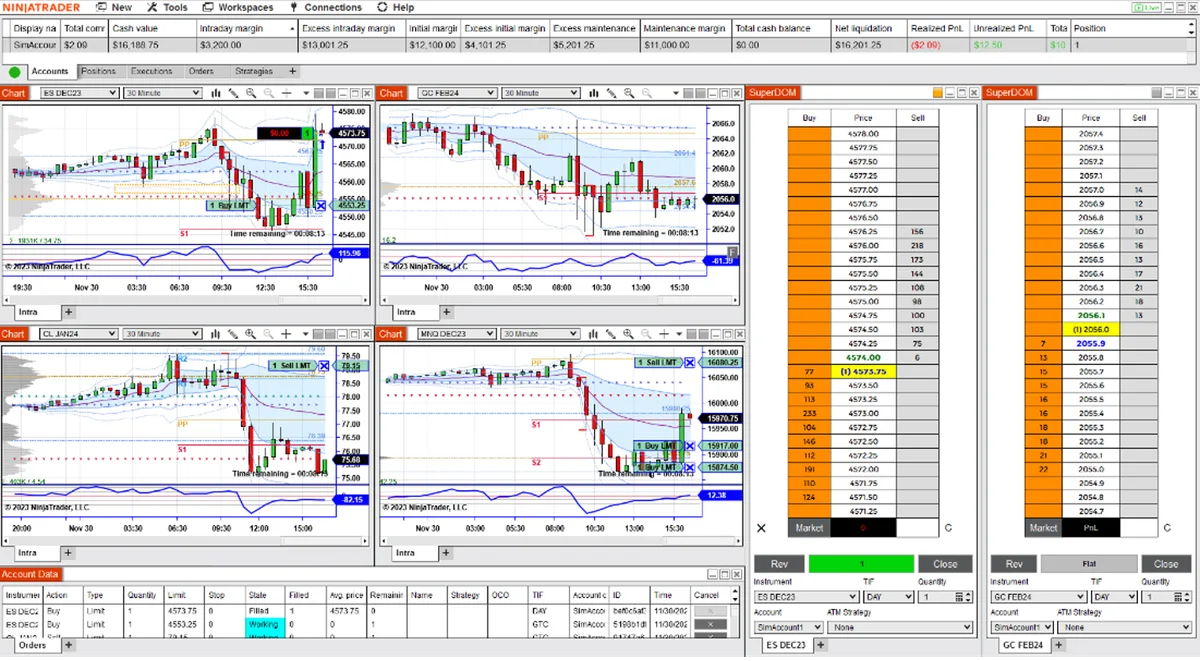
Chart Trader lets you place and manage orders from a NinjaTrader chart. Before using it, check the selected account and instrument: a chart is not a view of every connected account. Start with local Sim101 for practice so learning the controls does not place orders on an issued Rithmic account.
PropFirmConnector connects any Rithmic account to NinjaTrader 8. Establish that connection using the relevant firm or broker guide, then select the account in NinjaTrader’s order-entry tools. PropFirmConnector supplies the connection layer; Chart Trader supplies the chart controls, and copying requires a separate copier.
Show the panel before checking the order settings
Use the chart toolbar’s Chart Trader icon, or the Chart Trader setting in chart properties, to enable the panel. NinjaTrader’s overview describes the panel beside the chart and the controls it exposes.
Chart Trader (Hidden) is not an order-entry lock. It hides the side panel while leaving order and position display, and chart-based order management, available. Restore the full panel when you need to inspect the account, quantity or other settings. The Hidden View reference distinguishes hiding the panel from disabling Chart Trader.
Check the destination before submitting
Review these fields together, especially after changing charts or accounts:
| Field | What to check |
|---|---|
| Account | The exact account intended for this action. Several accounts can belong to one Rithmic login. |
| Instrument | The intended symbol and contract month. On a chart with several instruments, check Chart Trader’s Instrument selector. |
| TIF | The intended time in force. |
| Order Qty | The quantity for this order, not an assumed value carried over from another instrument. |
| ATM Strategy | Whether the order should use no ATM, a saved template or an active ATM instance. |
The submission reference documents these fields, the quick buttons and chart context menu. For entry practice, review the settings on Sim101 before choosing an order action. Right-click order choices depend on where the pointer is relative to the market; selecting a listed order action submits it.
Use the ATM guide for stop/target templates and active-ATM selection. For a stop entry, review the stop-market and stop-limit distinction before choosing the chart command. Neither the chart controls nor a template overrides your account provider’s trading rules.
Read the chart’s account and instrument scope
NinjaTrader’s display reference says Chart Trader shows orders and positions for the selected account and instrument. A working order is drawn as a price line with order-type and quantity information; an open position has its own entry-price, size and unrealized-PnL display.
If a position seems missing, check those selectors before concluding that it is closed. On a multi-instrument chart, changing Chart Trader’s selected instrument changes which orders and positions are displayed and which instrument its controls act on.
Market orders do not appear as resting order lines. Check the Control Center’s Orders tab for order information rather than treating the absence of a line as proof that nothing was submitted.
PnL display units can be changed in Chart Trader Properties. Check whether the value represents currency, ticks, points, pips or percent before interpreting it. This display is not a substitute for the account provider’s drawdown or risk records.
To monitor a price without submitting an order, use the NinjaTrader alerts guide to configure a notification action and check its log. A notification does not place a protective order.
Modify or cancel a working order deliberately
The documented price-edit workflow uses two clicks:
- Click the label at the left end of the order line to show a provisional line.
- Move it to the intended price and click again to submit the modification. Press Esc to abandon the pending price change.
To change size, click the quantity on the order label, enter the new quantity and use the check mark to accept. The X in that edit control abandons the edit.
The red X on the order marker instead requests cancellation of that order. Canceling an order in an OCO group also cancels the other orders in that group. Inspect the resulting order state; canceling a working order and closing an existing position are different actions.
Prefer a price ladder? The SuperDOM guide explains static and dynamic rows, mouse settings and stacked orders.
Keep other accounts in view separately
Chart Trader’s selected account does not establish what happened on another account. When using a copier, follow its documented leader/follower configuration and inspect follower orders independently; the copy-trading workflow explains that separation.
Before switching from local practice to an issued account, stop and recheck the account, instrument, quantity, TIF and ATM selection in the actual order-entry window. A successful Sim101 rehearsal demonstrates familiarity with the controls, not live fills or execution quality.
Documentation reviewed October 29, 2026. No real-account or execution-quality test is claimed.
PropFirmConnector publishes this article and sells the Rithmic connection add-on described on this site.