NinjaTrader SuperDOM: Price Ladder and Rithmic Order Controls
Read the NinjaTrader SuperDOM ladder, choose static or dynamic mode, and check account, mouse settings and stacked orders before using a Rithmic account.
On this page
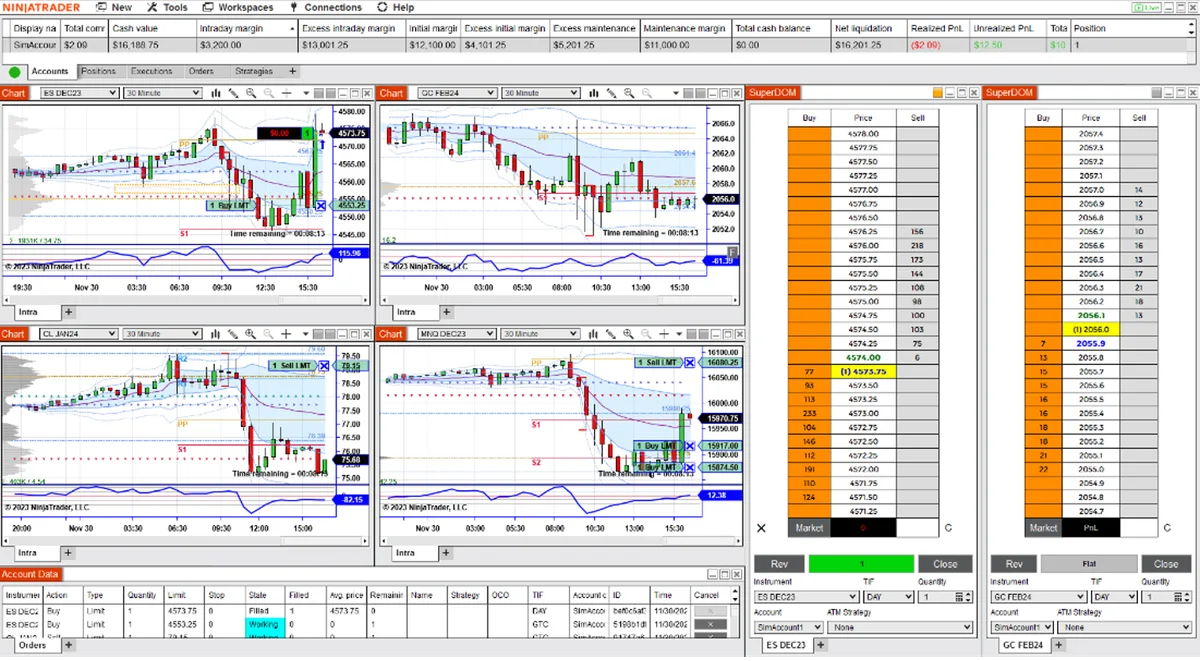
SuperDOM combines a price ladder with order-entry controls. Check its account, instrument and mouse settings before clicking a price: the ladder can submit or change an order. Learn the controls on local Sim101 before using an issued Rithmic account.
PropFirmConnector connects any Rithmic account to NinjaTrader 8. Use the connection guides to establish the connection, then select the intended account in SuperDOM. PropFirmConnector supplies connections; SuperDOM supplies the ladder interface, and trade copying requires a separate copier.
Open the ladder and check the destination
From Control Center > New, choose SuperDOM (Dynamic) or SuperDOM (Static) from the available menu. NinjaTrader’s SuperDOM overview introduces both displays.
Set the Instrument to the intended futures contract and choose the exact Account. Then review Quantity, TIF and ATM Strategy together. The submission reference documents these controls.
An account selected in another window is not proof of SuperDOM’s destination. Use the ATM guide for stop/target templates rather than assuming an old selection fits the next order.
Read the three main columns
The price-ladder reference describes the default layout:
| Column | What it shows and does |
|---|---|
| Buy, on the left | Bid quantities and buy-order controls. |
| Price, in the middle | Prices, the inside market and last trade; also controls for stop-loss and profit-target changes. |
| Sell, on the right | Ask quantities and sell-order controls. |
Resting market-depth quantities are different from your own working orders. Increasing the window’s height reveals more price rows; increasing # of market depth levels requests more depth levels, limited by what the exchange and data provider supply.
If depth is missing, check Show market depth in Properties, then use the Level II troubleshooting guide to check the feed and exchange entitlement. A display setting does not purchase data.
Understand static, dynamic and frozen rows
The static/dynamic reference distinguishes how prices move:
- Static: price rows stay fixed while the inside market moves up and down.
- Dynamic: the inside market stays in a fixed location while the row prices change.
- Dynamic with the pointer over the ladder: the displayed rows freeze and the ladder highlights red. The top row continues to show inside-market information. Moving the pointer away resumes the dynamic display.
Freezing the ladder does not pause the market or disable order entry. It holds the displayed rows so you can work at a chosen price. Recheck the current market before acting.
The C button recenters the inside market. Auto Center can bring the market back into view when it moves outside the displayed range.
Inspect mouse settings before practicing
These are the documented defaults for a price cell in the Buy or Sell column:
| Action | Default order |
|---|---|
| Left click | Limit |
| Ctrl + left click | Market if touched (MIT) |
| Middle click | Stop-limit |
| Ctrl + middle click | Stop-market |
Properties can swap the left-click limit/MIT behavior and the middle-click stop-limit/stop-market behavior. Check the actual configuration instead of relying on a remembered shortcut.
For stop-limit orders, the default workflow asks for an offset and confirmation. A predefined stop-limit offset can enable immediate submission. Read the submission details and stop-order comparison before practicing that action.
Recognize stacked orders before changing one
SuperDOM displays orders for the selected account and instrument. Its size marker shows the remaining quantity. An s in the marker means multiple orders are stacked at that price, with their remaining quantities combined.
A single visible marker therefore need not represent one order. Right-click the order to inspect the individual orders. A missing marker may also reflect the selected account, instrument or visible price range; do not infer that an order was canceled merely because it is out of view.
Separate editing from cancellation
The standard price-edit workflow is to click an order, then click its new price. Esc abandons the pending edit. Changing a consolidated price level can move multiple orders, so inspect the stack first.
With Single click order modification enabled, clicks in the center Price column can change ATM stops or targets immediately. Check this setting before treating the center column as a harmless navigation area.
The black X beside an order level cancels all orders consolidated there. To cancel one individual order, use its entry in the right-click menu. Canceling a working order and closing an existing position are separate actions; inspect the resulting order and position state.
If you prefer controls attached to a chart, use the Chart Trader guide. Whichever interface you choose, verify its destination and settings independently.
Documentation reviewed October 30, 2026. The workspace image is illustrative; no real-account or execution-quality test is claimed.
PropFirmConnector publishes this article and sells the Rithmic connection add-on described on this site.