NinjaTrader Futures Symbols: Find the Correct Contract
Find futures instruments in NinjaTrader 8, check the expiry and exchange, and distinguish the displayed symbol from a Rithmic provider mapping.
On this page
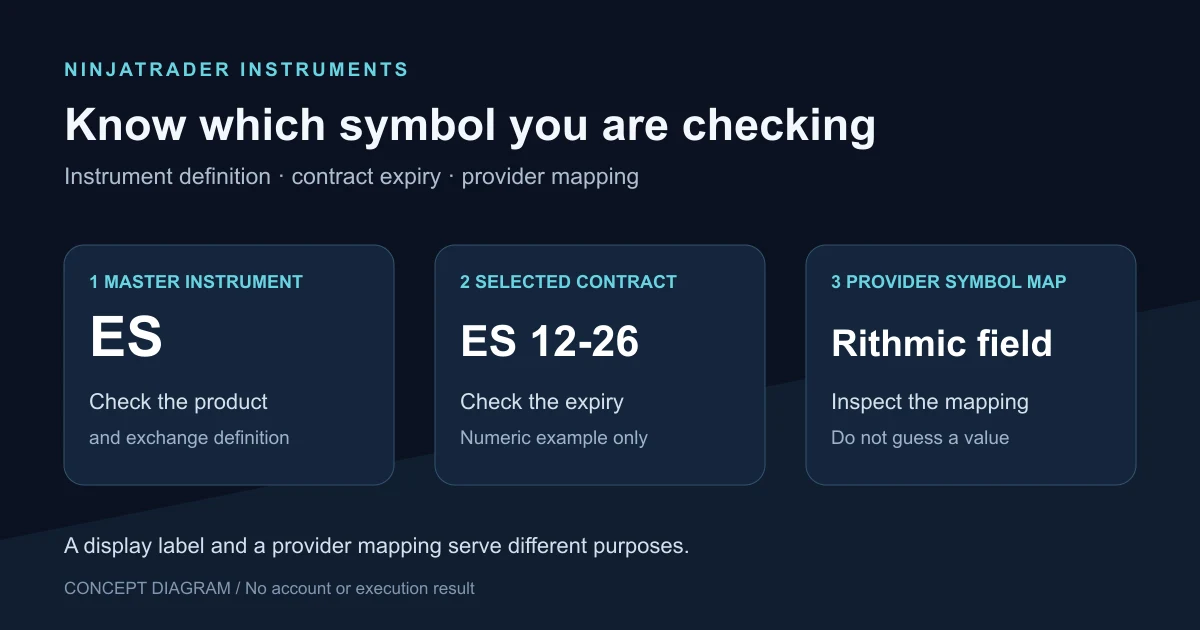
Open Control Center > Tools > Instruments, filter for Futures, and search the instrument database before creating a new symbol. Check the instrument’s description and exchange, then select the intended expiry in the window where you will use it.
NinjaTrader maintains a predefined instrument database. A symbol missing from your recent-instruments menu may still be in that database.
Search the instrument database
- Open Tools > Instruments and choose Futures in the Type filter.
- Search by the symbol or product description. NinjaTrader’s search reference distinguishes uppercase searches for the instrument name from lowercase searches for its description.
- Inspect the matching result. Double-clicking a result opens its instrument editor, where you can check the description, exchanges, tick size and point value.
Confirm the exact product before using a familiar-looking root. The micro-versus-mini guide explains why selecting a related contract does not preserve the same dollar exposure.
Separate the three symbol fields
| Field | What it identifies |
|---|---|
| Master instrument | NinjaTrader’s base instrument definition, such as ES. |
| Selected futures contract | The instrument plus a particular expiry. In numeric notation, ES 12-26 identifies the December 2026 contract. |
| Provider symbol map | The mapping in the instrument definition for a particular broker or data provider. |
The contract example illustrates the numeric format used in NinjaTrader’s documentation; it is not a recommendation to select that expiry. Check the contract you actually need.
A display difference is also worth checking before editing a mapping. NinjaTrader exposes Symbology display style under Tools > Settings > General. That setting controls how symbols are displayed. The General settings reference describes the display preference; the instrument editor holds the separate provider mappings.
Load and keep the intended expiry
In a chart or order-entry window, type into the Instrument Selector. Double-clicking a futures result loads its current expiry. To choose a specific contract, enter the instrument with the desired expiry and press Enter.
Quick-search suggestions can disappear after you enter an expiry or exchange. NinjaTrader explicitly documents this behavior: the text no longer matches the search items, but pressing Enter still loads the entered instrument. Check the resulting contract label instead of treating the empty suggestion list as proof that the instrument is absent. Instrument Selector reference
If the instrument is missing from the selector’s menu, use its Search option to search the database. Once you have selected the correct contract, it appears among recently viewed instruments. Hover over it in that menu and use the push-pin icon to keep it handy.
Selecting a contract in one window is a different task from updating an existing workspace’s expiries. Use the futures rollover guide for that workflow and its separate order-and-position checks.
Inspect mappings without guessing
NinjaTrader says most predefined instruments already have their provider mappings and generally do not need parameter changes. For a genuinely new instrument, the editing reference requires a mapping to the symbol used by the connectivity provider.
Before changing anything, record the master instrument, requested expiry, exchange and the provider field you are inspecting. Confirm an uncertain Rithmic mapping through the provider’s or NinjaTrader’s documentation or support. A symbol copied from another platform’s display is not enough to establish the correct value for that field.
Use New only after confirming the instrument is absent and obtaining its required parameters. The manual-add workflow requires those parameters and the applicable provider mapping; creating another record with a similar name is not a diagnosis.
If the correct contract loads but quotes are missing, check the account’s exchange market-data permissions before assuming the symbol definition is wrong. Finding an instrument in the database does not establish that a particular account can receive its data or trade it.
PropFirmConnector connects any Rithmic account to NinjaTrader 8. The connection guides cover the account connection; instrument selection, data permissions and your copier’s destination settings are separate checks.
Documentation reviewed November 9, 2026. The diagram is illustrative; no live-account, mapping-change or execution-quality test is claimed.
PropFirmConnector publishes this article and sells the Rithmic connection add-on described on this site.