How to Run a NinjaScript Strategy on the Right NinjaTrader Account
Choose the account for a NinjaScript strategy, read its startup position, and check working orders when you disable it in NinjaTrader 8.
On this page
In NinjaTrader 8, the strategy’s Account setting determines where it can send orders. Add the strategy in Control Center, leave its row disabled while you check the account and contract, and review how it will handle any difference between its calculated position and the position the account holds.
Choose the account before enabling the strategy
- With your connection active, open Control Center > Strategies. Right-click inside the grid, select New Strategy, and choose the installed strategy.
- Set the futures contract and bar interval. Under Setup > Account, choose the intended account. For a local rehearsal, select Sim101. An evaluation account issued by your firm is a different destination, even if the firm calls it simulated. Identify Sim101 and your issued Rithmic account
- Review the strategy inputs, order quantity setting and Start behavior. Select OK. If the new row is missing, check the grid’s Filter Only Active Strategies setting. Leave Enabled unchecked until the account and instrument on the row match your intent. Strategy setup · Strategies grid controls
PropFirmConnector connects any Rithmic account to NinjaTrader 8. If your issued account is missing from the selector, start with the connection guides. Before enabling automation on a prop-firm account, check the rules for your specific program and account stage.
Read the position columns at startup
| Grid column | What it tells you |
|---|---|
| Position | The position this strategy calculates for the instrument. It can reflect signals from historical bars loaded at startup. |
| Acct. position | The position the selected account holds in that instrument, including manual trades or trades from other strategies. |
| Sync | Whether this strategy’s position matches the account for the instrument. Each strategy gets its own comparison. |
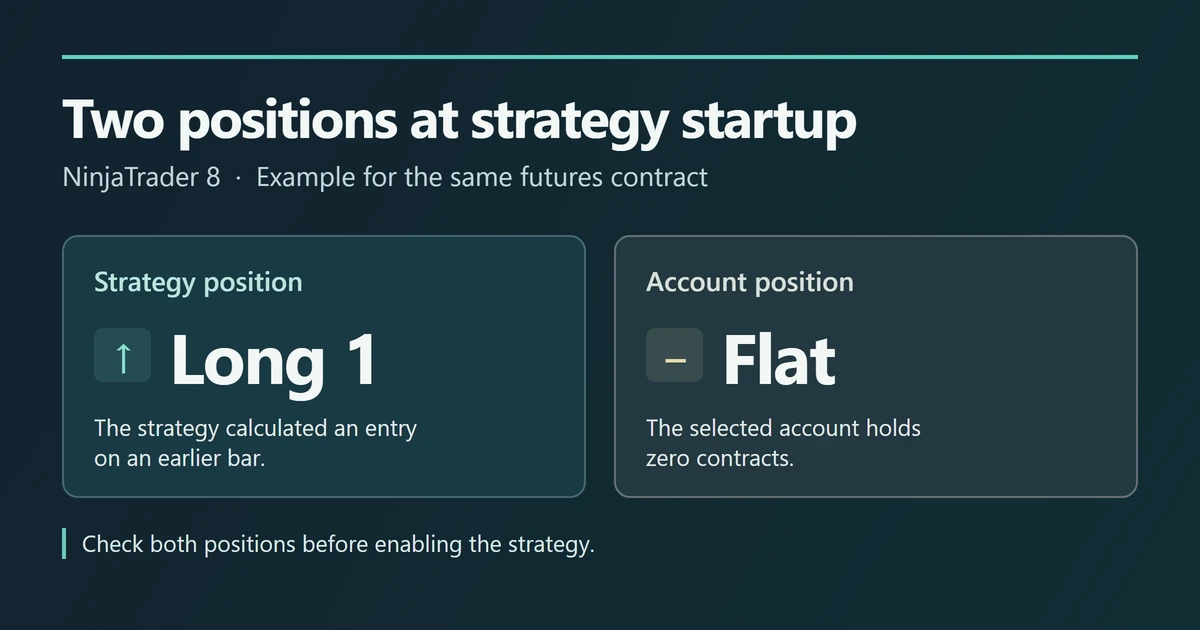
For example, the strategy could calculate it is long one contract from earlier bars while the account is flat. That historical entry did not buy a contract in the account. With plain Wait until flat, NinjaTrader assumes the account starts flat. If the strategy starts long, it waits until its calculated position reaches or crosses flat before sending subsequent orders to the selected account. An orange strategy name identifies that waiting state. Strategy and account positions · Strategies grid reference
Pay attention to the words synchronize account in a startup choice. With Wait until flat, synchronize account, NinjaTrader can send a market order to flatten an existing account position during startup. With Immediately submit, synchronize account, it can send a market order to bring the account into line with the strategy. Keep the row disabled if that would change a position you intend to hold. Once you have reviewed the selected behavior and account, check Enabled on that row to start it. NinjaTrader startup behaviors
Check the account when you stop the strategy
Clear Enabled on the strategy’s row. Then inspect the working orders and open position for that account and instrument. NinjaTrader has separate settings for canceling a strategy’s entry orders and its exit orders when disabled. For example, if the strategy had a protective stop, check whether that order is still working and whether the account still holds the position it covered. NinjaScript order handling
For historical results, use the Strategy Analyzer backtest guide. If you place entries yourself and want a template to manage their stops and targets, see the ATM strategy guide.
Documentation reviewed November 21, 2026.
PropFirmConnector publishes this article and sells the Rithmic connection add-on described on this site.