NinjaTrader VPS Requirements for Multiple Rithmic Logins
Choose a Windows VPS for NinjaTrader: compare minimum and recommended specs, size your workspace, and understand remote-session and Rithmic connection behavior.
On this page
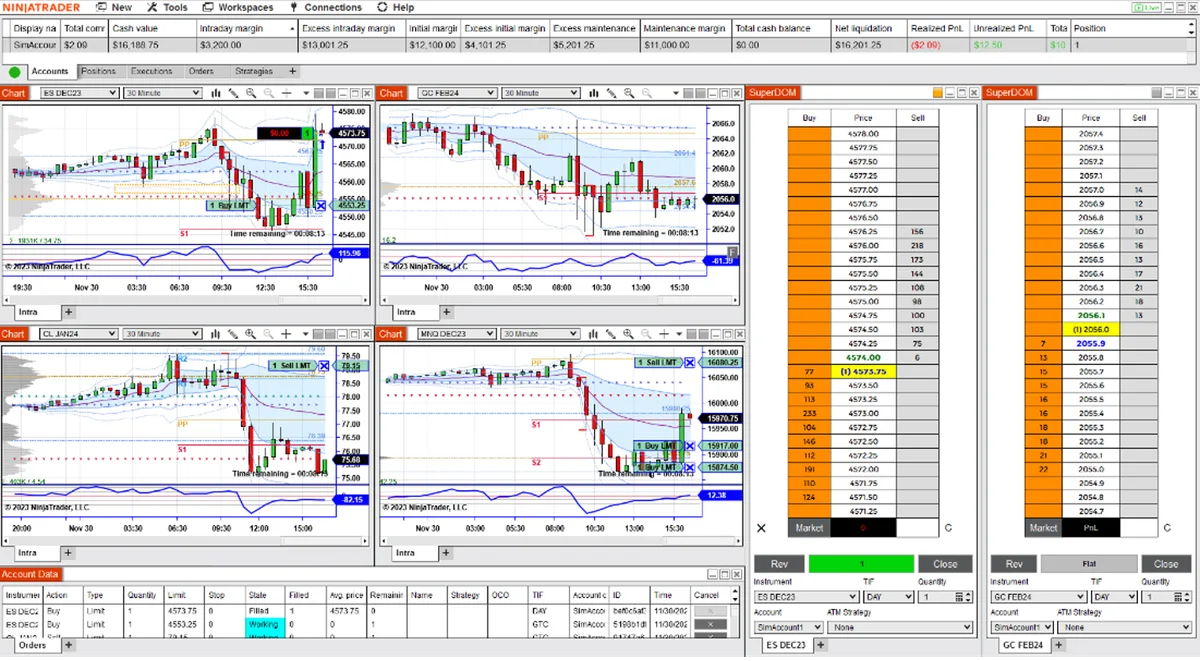
Choose a VPS that can run your actual NinjaTrader workspace, provides secure Windows desktop access, and has a clear restart and session policy. A VPS is optional: PropFirmConnector also runs on your own Windows desktop or laptop. Moving the application to a remote computer does not by itself add Rithmic connections or copy trades.
Start with NinjaTrader’s Windows requirements
NinjaTrader’s current requirements list 64-bit Windows 11 or Windows Server 2016 and later. Ask which Windows edition and version the hosting plan actually supplies.
| Resource | Published minimum | Published recommendation |
|---|---|---|
| Processor | 1 GHz or faster, 64-bit | 2 GHz or faster, quad-core, 64-bit |
| Memory | 2 GB RAM | 8 GB RAM |
| Graphics | DirectX 10 compatibility highly recommended | DirectX 10-compatible graphics |
| Storage | No capacity specified on this page | SSD |
| Other requirements | .NET Framework 4.8; 1024 × 768 screen resolution | Size additional resources for actual usage |
The minimum is an installation floor, not evidence that a busy multi-chart workspace will run well. Use the recommended specifications as a starting point for evaluation. Ask the host to explain its CPU allocation, graphics support over Remote Desktop, usable storage and upgrade options. A plan’s core count alone does not establish how your charts and add-ons will perform.
Size the workspace, not just the account count
Write down the charts, instruments, indicators, strategies, market-depth windows and other applications you intend to keep open. Include background workspaces and the amount of historical data loaded.
NinjaTrader’s performance guidance explains that inactive-but-open workspaces still consume resources, and that chart count, tick processing and third-party scripts affect load. Its guidance also notes that many charts of the same instrument cannot benefit from multiple CPU cores in the same way as charts of different instruments.
During a trial or other evaluation period, load the intended workspace and observe CPU, memory and responsiveness during the hours you normally use it. Try removing unneeded charts or indicators before buying a larger plan. Record what changed so you can distinguish a resource shortage from one problematic script. There is no documented account-to-RAM formula in the sources reviewed here.
Keep the Windows session and trading connection separate
Remote Desktop gives you access to the computer running NinjaTrader. Your remote screen connection and NinjaTrader’s Rithmic connection are separate things.
| Action | Effect to plan for |
|---|---|
| Disconnect the remote session | Programs can remain running in the Windows session; configured session limits still apply. |
| Sign out of Windows | The session ends and its application processes terminate. |
| Restart the VPS | Arrange time to reopen the workspace and verify connections after startup. |
| Lose the VPS’s connection to the data provider | Treat this as a trading-platform connectivity problem, even if Remote Desktop still works. |
Microsoft documents the difference between disconnecting and logging off. Its session policies can end disconnected sessions after a configured interval. Ask the host about those limits and scheduled maintenance before relying on a disconnected desktop.
Keep a way to reach the host’s console or recovery tools if Remote Desktop fails. Follow the host’s secure access method; Microsoft recommends Network Level Authentication for Remote Desktop. Confirm account permissions and recovery access before moving the workspace.
Before moving an established layout, follow the workspace backup and restore checklist to preserve the files you need and verify the destination.
Add Rithmic logins inside NinjaTrader
PropFirmConnector connects any Rithmic account to NinjaTrader 8. Install and activate it on the computer where NinjaTrader runs, whether that is the VPS or your local PC. Several trading accounts under one Rithmic login use that login’s connection; separate Rithmic logins need separate connections.
Use the multiple-firm connection walkthrough and the relevant firm or broker connection guide for credentials and System settings. A VPS does not replace those settings. PropFirmConnector supplies the connections; order copying requires a separate trade copier.
Before moving an established setup, identify which computer should keep each login active. Check the account provider’s simultaneous-session rules rather than assuming you can leave the same login connected on both machines.
Verify continuity without placing a live test trade
With automated strategies and copying disabled, use NinjaTrader’s local simulation account for a workspace check. Confirm the selected account, disconnect the remote session, reconnect to the same Windows user, and inspect whether the workspace remained open. Separately verify your intended Rithmic connections and data after reconnecting. This checks your configuration; it does not prove uninterrupted service during a later outage.
Do not treat closing a window or restarting the VPS as an order-cancellation method. NinjaTrader’s order-location reference distinguishes orders held at the broker, exchange or provider from functions handled locally. Confirm the behavior of the order types and add-ons you use before planning downtime.
Choose a host based on demonstrated workspace behavior, secure access and a workable recovery process. A location label or advertised ping is not a measured fill-quality result for your Rithmic accounts.
Documentation reviewed October 23, 2026. This guide is based on platform documentation, not a VPS benchmark or a real-account execution test.
PropFirmConnector publishes this article and sells the Rithmic connection add-on described on this site.