Back Up a NinjaTrader Workspace Before Changing Computers
Back up and restore your NinjaTrader workspace, choose archive contents, and verify charts, add-ons and Rithmic connections after moving to another PC or VPS.
On this page
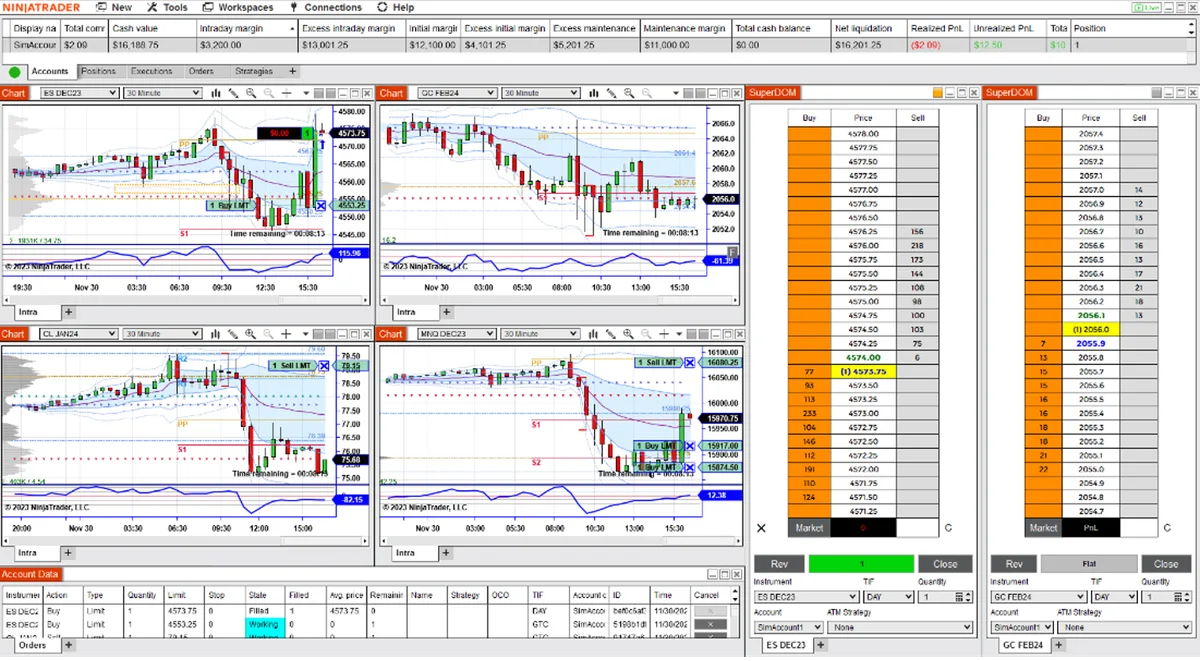
Save your workspace, export a backup with the components you need, and verify the restored setup before reconnecting trading accounts. A chart layout and a working Rithmic connection are separate parts of the move. A successful import alone does not establish that the destination computer has the right add-ons, account access or data.
Save the layout before making the archive
In the Control Center, open Workspaces, hover over the workspace name and choose save. Use save as if you want a separately named copy before changing the layout. NinjaTrader’s workspace documentation describes both commands.
Give the workspace a recognizable name, then record the charts, instruments, indicators and order-entry windows you expect to see. Screenshots can help you compare the destination with the original, especially when the monitor arrangement changes. Keep account numbers and other private information out of screenshots you share.
Plan the move for a time when no open positions, working orders, active strategies or copying depend on the installation you are disconnecting.
Choose a layout export or a broader backup
NinjaTrader also offers Workspaces > export for selected workspace files. For a computer move that needs templates or custom tools too, use the configurable backup under Tools > Export > Backup File.
Choose the backup contents deliberately:
| Component | What it preserves |
|---|---|
| Workspaces | Window arrangement and workspace layouts |
| Templates | Saved chart, ATM and other feature settings |
| NinjaScript files | Custom scripts and third-party add-on files |
| Configuration files | User options, account settings and license information |
| Database | Stored trade executions used in performance reports |
| Historical chart or replay data | Locally stored market data, when selected |
These categories come from NinjaTrader’s backup reference. A layout-only export should not be treated as a full installation backup. Keep the archive private, particularly if it includes configuration or diagnostic files.
Disconnect data connections, open the backup command, choose the components and select Export. Pick a destination and a descriptive filename, then select Backup. Wait for completion and confirm the file exists at that location.
Keep a separate copy away from the computer being replaced. Use a name such as before-pc-move-2026-10-24 and note what you selected. Retain the original setup until the destination has passed your checks.
Restore onto the destination computer
If the destination already has a useful NinjaTrader setup, back that up first. Check the NinjaTrader version and each add-on’s installation and licensing instructions before importing.
In the destination’s Control Center, use Tools > Import > Backup File, select the archive, open it, choose the components to restore and select Import. These are the steps in NinjaTrader’s restore guide. Allow the operation to finish before opening the restored workspace.
NinjaTrader warns that backups from older releases can encounter import problems when its resource structure has changed. If an import fails, retain the archive and error details for NinjaTrader support. Do not delete the original installation just because the archive was created successfully.
For a move to a hosted computer, also check NinjaTrader VPS requirements and remote-session behavior. Restoring files does not establish that a VPS has enough resources for the workspace.
Reconnect Rithmic accounts separately
PropFirmConnector connects any Rithmic account to NinjaTrader 8. On the destination, verify that PropFirmConnector is installed and activated. Follow the current setup instructions for your account’s credentials and System; the connection directory provides firm and broker walkthroughs.
Do not assume a restored account configuration proves that a login is currently valid. Confirm which computer should use each login, then check the issuer’s simultaneous-session rules before leaving both computers connected. Use the Rithmic login guide if authentication or account discovery fails.
PropFirmConnector supplies the connections. If you use a separate trade copier, review its installation, activation and leader/follower assignments on the new computer before enabling copying.
Check the restored workspace before using it
Keep strategies and copying disabled while you inspect:
- Every expected chart, instrument expiry, interval and indicator.
- Template availability and any add-on error or activation message. If restored charts show unexpected session boundaries, compare their Trading Hours templates and time zones.
- The account selected in each order window and strategy configuration.
- Market data and the intended Rithmic accounts after connecting.
If the layout includes a watchlist, compare its instrument rows and indicator settings using the Market Analyzer setup guide. A restored quote table does not verify positions or copier destinations.
For order-entry practice, deliberately select NinjaTrader’s local simulation account and confirm copier destinations cannot receive those orders. A layout or simulation check does not verify live execution quality.
If you only need an earlier layout on the same computer, NinjaTrader documents Tools > Database Management > Restore Workspace. Its default is ten saved recovery versions. That local recovery option and a separately stored migration backup serve different purposes; keep the external archive until the move is complete.
Documentation reviewed October 24, 2026. This is a documented migration checklist, not a report of a tested customer-account transfer.
PropFirmConnector publishes this article and sells the Rithmic connection add-on described on this site.