NinjaTrader Trading Hours Templates and Rithmic Sessions
Set NinjaTrader chart sessions, compare template and display time zones, and separate missing bars from Rithmic connection issues and account trading cutoffs.
On this page
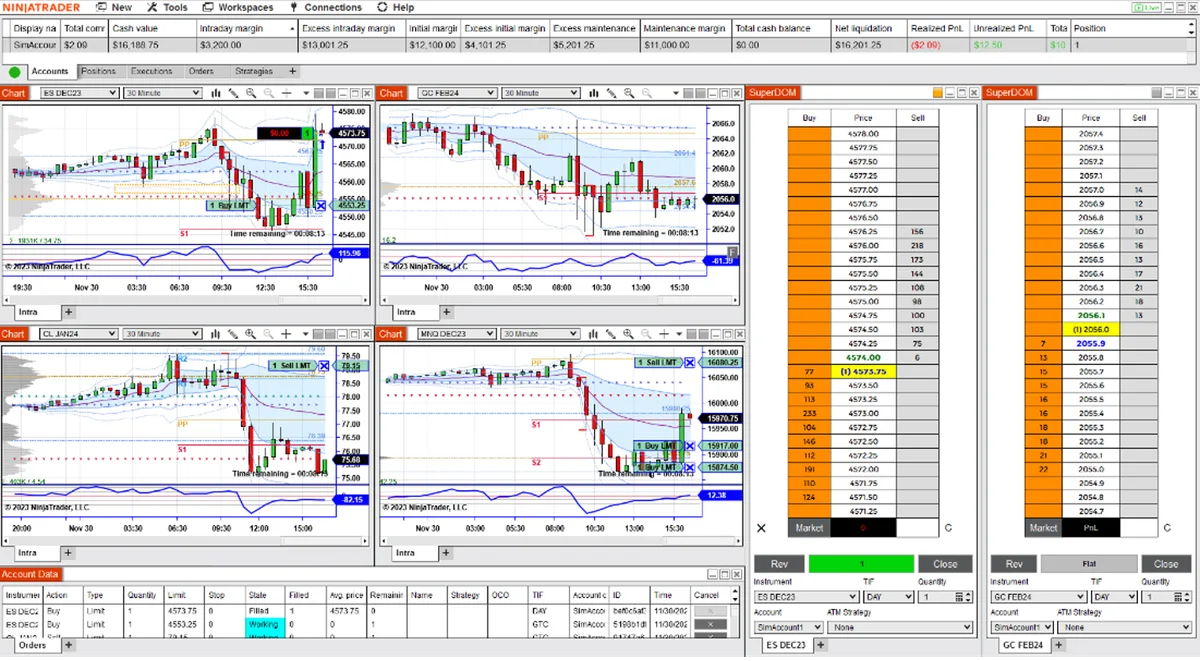
Check the chart’s Trading Hours setting and the platform’s display time zone before treating missing bars as a Rithmic connection problem. A session template determines which periods of data the chart uses. Keep that chart configuration separate from the exchange schedule and your account’s trading requirements.
Separate the chart, clock and account rules
| What you are checking | Where to look | What to establish |
|---|---|---|
| Chart session | The selected data series and its Trading Hours template | Whether the period you want to see is included |
| Displayed time | NinjaTrader’s General settings | Which time zone labels the chart and market data |
| Market availability | The exchange’s instrument and holiday schedule | Whether that specific market is open |
| Account cutoff | Your prop firm’s or broker’s current rules | When that account must stop trading or close positions |
Do not use the last visible chart bar as proof that an account is flat or that trading is permitted. Review working orders and positions separately. Likewise, do not copy NinjaTrader Brokerage’s account rules onto a different firm’s Rithmic account merely because both use NinjaTrader Desktop.
For CME products, consult the exchange’s trading-hours and holiday schedules for the exact instrument and date. CME says holiday schedules can change and are usually finalized about two weeks beforehand. A generic weekly timetable is insufficient for an early-close day.
Select the session used by a chart
NinjaTrader’s Data Series reference documents the chart controls:
- Right-click the chart background and open Data Series.
- Select the intended series in Applied. A chart can contain more than one.
- Inspect Trading Hours, the instrument and the loaded date range.
- Choose the intended session template, apply the change, and compare the result with your original chart.
A saved Chart Template can override manually selected Data Series settings, including Trading Hours. If applying a layout brings back an unexpected session, inspect the settings again after loading it.
Keep the futures expiry consistent while comparing charts. The futures rollover guide covers changing contracts and historical merge settings; a different expiry is a separate reason for different price history.
If the session matches but the bar shapes differ, compare tick and time bar construction, including the Break at EOD setting.
Inspect the template before editing it
Open Control Center > Tools > Trading Hours. NinjaTrader’s Trading Hours overview describes this window as the place to configure market-session templates.
The template reference explains that data outside the defined sessions is excluded wherever the template is applied. Review:
- The template’s time zone.
- Each session’s start and end day and time.
- The EOD marker identifying the final session of a trading day.
- Holiday entries, including closures, late opens and early closes.
NinjaTrader supplies common templates and updates them from its data server. If you need a custom view, use copy to give it a separate name before editing; retain the original for comparison. Save intended changes with Apply.
For example, a chart configured to show only a daytime session will not display the excluded overnight period. First establish which session view you intended. Expanding a chart’s session does not establish that your account allows overnight trading.
Compare time zones explicitly
NinjaTrader’s General settings contain a separate Time zone option for charts and market-data display. Its default follows the local PC time zone. The zone used to define a session and the zone used to display it need not be the same.
Write down both settings when diagnosing an apparent shift. Compare a known session boundary on the same date, using named time zones rather than an assumed fixed UTC offset. This is especially useful after a PC or VPS move, or around daylight-saving changes.
Do not edit the session’s start and end times just to make its clock labels resemble another person’s screenshot. First compare their display zone, instrument, date and selected template with yours.
Check one chart before changing the workspace
Save a workspace backup before broad changes. Use a separate chart for the comparison and keep strategies and copying paused while changing their inputs.
Change one setting at a time and record whether it explains the missing period. Keep the instrument, expiry, interval and historical range unchanged during the comparison.
For Market Replay practice, also match the chart to the recording’s contract and available period. Changing session settings cannot supply a missing recording.
If the login fails, the account is absent, or data remains unavailable during the intended session, continue with the Rithmic login and troubleshooting guide. Keep the exact symptom, timestamp and time zone in your notes; a chart-setting change alone does not verify authentication or data access.
PropFirmConnector connects any Rithmic account to NinjaTrader 8. The connection directory helps with account setup. PropFirmConnector supplies connections; chart sessions, account rules and any separate trade copier still need their own configuration.
Documentation reviewed October 25, 2026. The workspace image is illustrative; no account-session, copier or execution-quality test is claimed.
PropFirmConnector publishes this article and sells the Rithmic connection add-on described on this site.