Real live on Rithmic
Phidias offers real live accounts on Rithmic and Tradovate. Use the settings for the feed you receive.
- NinjaTrader System
Rithmic 01 (Chicago)
PropFirmConnector required — including one live login.
Yes, with PropFirmConnector, for Phidias Rithmic accounts at every stage. Select Rithmic Paper Trading (Chicago) for Evaluation and CASH accounts, which are simulated, and Rithmic 01 (Chicago) for a LIVE account, which has its own Rithmic login. Phidias’s Tradovate accounts log in to NinjaTrader directly and don’t need the add-on.
PropFirmConnector is an independent third-party add-on and is not affiliated with or endorsed by Phidias Propfirm, NinjaTrader, or Rithmic.
Phidias offers real live accounts on Rithmic and Tradovate. Use the settings for the feed you receive.
Rithmic 01 (Chicago)PropFirmConnector required — including one live login.
Use PropFirmConnector with the Rithmic credentials issued for your simulated account.
Rithmic Paper Trading (Chicago)Tradovate account? Use the native NinjaTrader route, including for a separate Tradovate live account. Official setup.
Have your live Rithmic login ready. Complete live onboarding and confirm the account appears in R|Trader Pro. Your website and NinjaTrader application logins are separate.
Sign in to R|Trader Pro once with the Rithmic username and password from your Phidias email or dashboard. Select Rithmic Paper Trading for an Evaluation or CASH account, or Rithmic 01 for LIVE, with Gateway Chicago Area, and accept the market data agreements as Non-Professional. Once your account appears, close R|Trader Pro; PropFirmConnector doesn’t need it open.
From your PropFirmConnector account, download PropFirmConnector.zip and close NinjaTrader completely. Extract the ZIP, then copy NinjaTrader.Custom-pfc.dll to My Documents\NinjaTrader 8\bin\Custom. Start NinjaTrader again and, when your browser opens, click Activate this device.
Open your account downloadsNo license yet? Start the free 7-day trial, then download PropFirmConnector from your account.
Start NinjaTrader 8 and sign in with your NinjaTrader account credentials when prompted. These are your NinjaTrader credentials, not the Rithmic username and password issued by Phidias Propfirm.
In the NinjaTrader Control Center, open Connections, click Configure and double-click Rithmic for NinjaTrader Brokerage. Give the connection a name such as Phidias Eval, paste your Rithmic username and password, leave Connect on start up unchecked and Plug-in mode off, and select Rithmic Paper Trading (Chicago) for Evaluation and CASH accounts. For a LIVE account, add a second connection, such as Phidias Live, with the live login and Rithmic 01 (Chicago).
Rithmic Paper Trading (Chicago)The Username and Password are case-sensitive.
Rithmic 01 (Chicago)The Username and Password are case-sensitive.
Open Connections again and click the connection name you just created. A green status indicator and the account appearing in NinjaTrader confirm the connection.
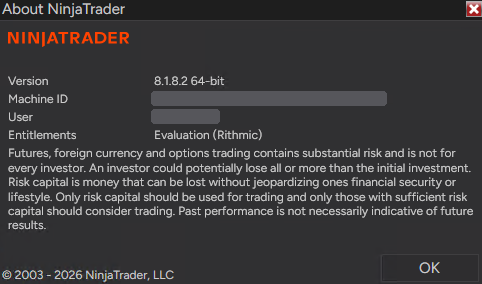
If Evaluation (Rithmic) is missing:
@APE-XTRA-DERF-UNDI-183T-PR45-LW27-63GE Rithmic account not showing in NinjaTrader: the full fix, step by step →
Rithmic Paper Trading (Chicago) for Evaluation and CASH accounts, which are simulated. For a LIVE account, use its own Rithmic login with Rithmic 01 (Chicago).
Yes, with PropFirmConnector. Phidias’s terms say NinjaTrader isn’t compatible with its Rithmic data feed, and NinjaTrader can’t connect a Phidias Rithmic account on its own; the add-on connects Evaluation, CASH and LIVE Rithmic accounts.
The Rithmic username and password from your Phidias email or dashboard, not your website login. A LIVE account comes with its own Rithmic login. Tradovate accounts use their own NinjaTrader login and don’t need PropFirmConnector.
Yes. PropFirmConnector can connect multiple separate Rithmic logins in one NinjaTrader instance, such as your Evaluation and LIVE logins, or accounts from other prop firms.
No. PropFirmConnector is an independent NinjaTrader add-on and is not affiliated with or endorsed by Phidias Propfirm, NinjaTrader, or Rithmic.