NinjaTrader Close vs Flatten Everything: Check the Scope
Compare Close, an active ATM exit and Flatten Everything in NinjaTrader Desktop, then verify positions and working orders across your Rithmic accounts.
On this page
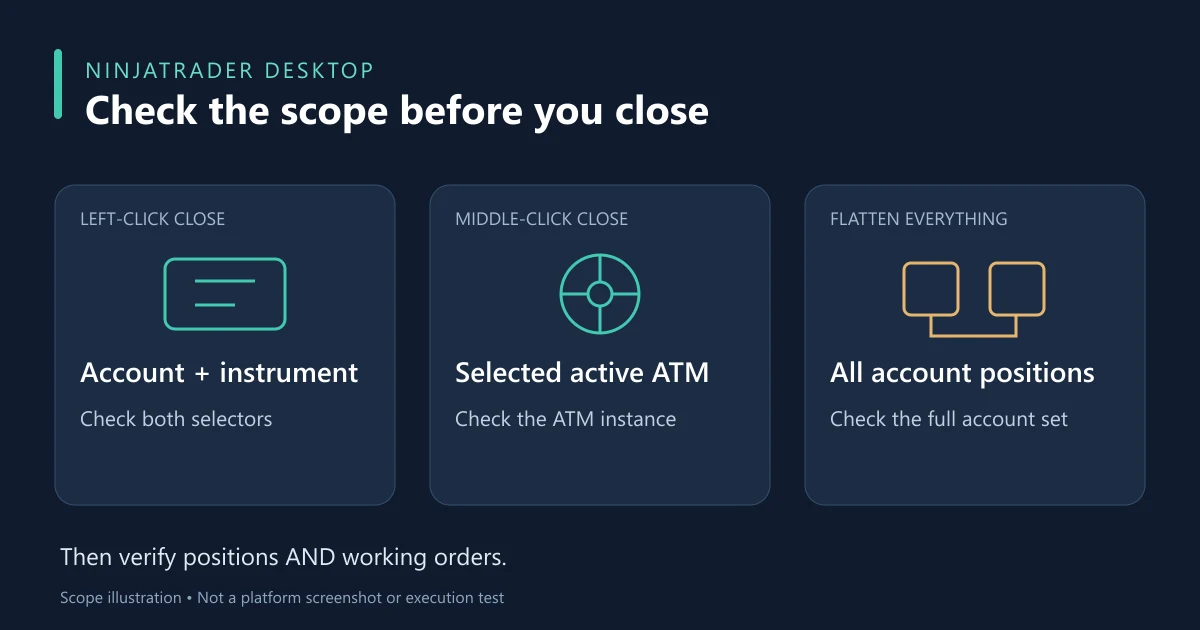
In NinjaTrader Desktop, left-clicking Close targets the current account and instrument. Middle-clicking Close targets the selected active ATM Strategy. Flatten Everything has a broader reach across accounts. Choose the intended scope before clicking, then verify the resulting positions and orders.
PropFirmConnector connects any Rithmic account to NinjaTrader 8. Its connection guides help establish access; NinjaTrader supplies these position controls. A connected account and a copier’s follower configuration are separate things, so a close action on a leader is not evidence that every follower is flat.
Match the action to its scope
| Control | Documented scope | Check before acting |
|---|---|---|
| Close, left mouse button | Current position and working orders for the account/instrument combination. | The account and full instrument, including contract month, in the order-entry window. |
| Close, middle mouse button | The selected active ATM Strategy position only. | The active ATM instance, not just the name of a saved template. |
| Close Position in the Positions grid | The selected position, plus working orders associated with its instrument. | The selected row’s account, instrument and quantity. |
| Flatten Everything | All open positions and open orders on every account associated with NinjaTrader. | The full account set; this is broader than one selected chart or position. |
| Cancel Order or an order’s X | The selected working order. | Canceling an order is different from exiting a filled position. |
NinjaTrader documents the mouse-button distinction in its Close control reference. The Positions tab reference describes its row-level action and Flatten Everything, available from the grid’s right-click menu. The Basic Entry reference explicitly states that Flatten Everything reaches every account associated with NinjaTrader.
Filter By Account changes what the Positions grid displays. Do not treat a display filter as a limit on Flatten Everything. If you intend to affect one position, identify that position and its scoped control rather than inferring the target from which rows happen to be visible.
Example: two accounts, different positions
Suppose account A holds ES and account B holds MES. In an order-entry window set to account A and ES, a left-click on Close targets A’s ES position and associated orders. That is not the same action as Flatten Everything, whose documented scope includes both accounts.
Now suppose account A has more than one active ATM on ES. The documented middle-click action addresses the selected active ATM, while left-click addresses the account/instrument position. Check the selection before using either control. The ATM strategy guide explains saved templates versus active instances; the Chart Trader guide explains account and instrument selectors.
These are scope examples, not an account test or a promise that an exit will complete.
Verify positions and orders after the request
NinjaTrader’s closing procedure identifies the active account/instrument, requests order cancellations, waits for confirmations and then sends an offset order for the open position. The documented wait of up to five seconds for cancellation confirmations is not a five-second guarantee that your position will be closed.
After a close or flatten request:
- Inspect the Positions tab for the intended accounts and instruments. Check its account filter and account-identification columns so a hidden row is not mistaken for a closed position.
- Inspect the Orders tab for remaining working orders and the reported state of the close/cancel requests. Its account and active/inactive filters also affect what you see; the Orders tab reference describes these controls.
- If the state is unclear, a request fails or the connection is unavailable, confirm positions and orders through your account provider’s supported access or orders desk before assuming the account is flat.
NinjaTrader warns that Close Position and Flatten Everything can be affected by in-flight executions: another fill may arrive while a cancellation or closing request is being processed. Its electronic-trading risk reference describes how this can leave a position open, including in the opposite direction. A button click or disappearance of a chart marker is not sufficient confirmation.
Before assigning an exit to a key, use the hotkey setup guide to check its mapping and active-window behavior.
Rehearse the scope before using issued accounts
Use an isolated local simulation setup to learn the controls. Keep issued accounts out of that rehearsal, especially when exploring an action whose scope spans accounts.
If you use a trade copier, review that copier’s own flatten, follower and recovery behavior. Similar button names do not establish identical scope. Follow the copy-trading workflow and check each follower’s resulting state separately. PropFirmConnector provides connections; it does not replace the copier or verify that an exit filled.
Documentation reviewed November 7, 2026. No live-account, disconnect or execution-quality test is claimed.
PropFirmConnector publishes this article and sells the Rithmic connection add-on described on this site.