NinjaTrader Hotkeys: Configure Shortcuts and Window Focus
Assign NinjaTrader 8 hotkeys, enable trading shortcuts, and check the active window so a keyboard action reaches the intended order-entry controls.
On this page
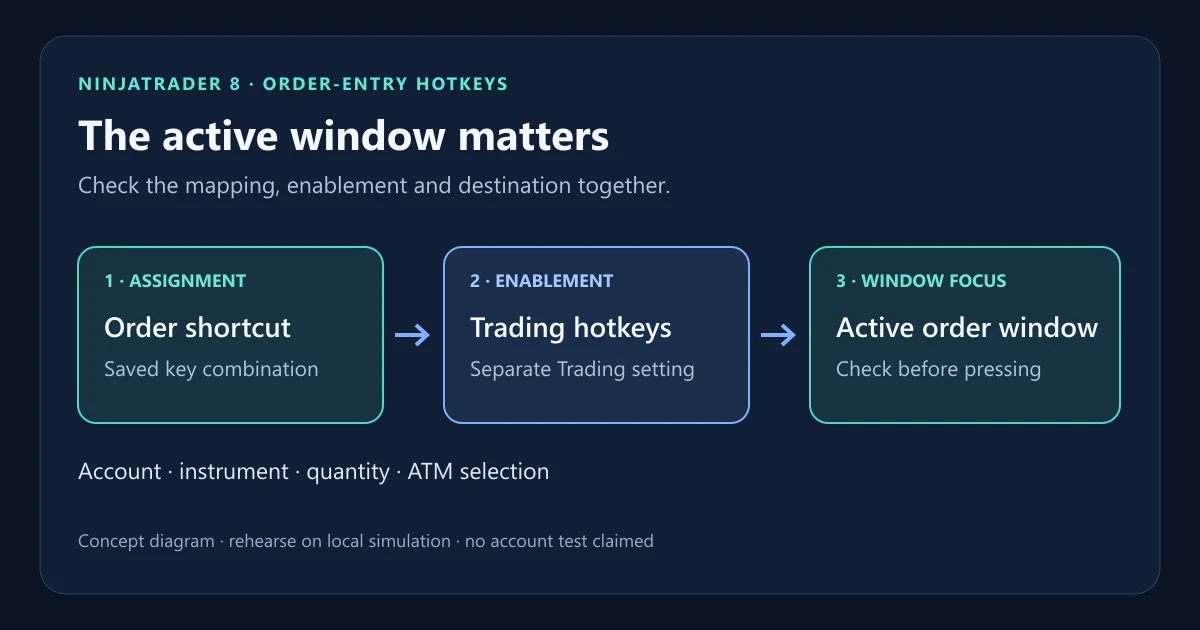
Configure NinjaTrader 8 shortcuts from Control Center > Tools > Hot Keys. Before using a trading shortcut, check which order-entry window is active: the same key combination can act on a different instrument after you switch windows.
The Hot Keys overview covers shortcuts for opening windows, operating tools and placing orders. This guide concerns NinjaTrader Desktop, not the web platform’s keyboard settings.
Assign, remove and record your shortcuts
In the Hot Keys window:
- Choose the relevant category, then find the action you want to assign.
- Click its shortcut field to start recording.
- Press the intended key combination. Press Esc instead to abandon recording.
- If NinjaTrader reports a conflict, review which existing assignment would be replaced before accepting.
To clear an assignment, use the X at the end of its field. Right-click within the window and choose Print Hot Keys for a reference to your saved mappings. These controls are documented in Working with Hot Keys.
Use your own saved list when checking a shortcut. A key combination copied from someone else’s workspace may represent a different action in yours.
Match the category to the active window
| Assignment category | Where it applies |
|---|---|
| A specific window, such as Chart | That window must be active. |
| Global | Applies across active NinjaTrader windows, except while a modal dialog has focus. |
| Order Entry | Requires an active order-entry window and the separate trading-hotkey setting. |
“Global” here refers to NinjaTrader’s window categories. Do not read it as a promise that the shortcut operates while another desktop application has focus.
Enable order-entry hotkeys deliberately
The current Trading with Hot Keys reference directs you to Control Center > Tools > Settings > Trading, then Use order entry hotkeys. Assigning a key and enabling order-entry shortcuts are separate steps.
A modal dialog disables hotkeys while it is open. Finish or dismiss the dialog before checking window focus again.
Consider two SuperDOM windows, one displaying ES and the other MES. If you activate the MES window, an order-entry shortcut acts there even while the ES window remains visible. This is an illustrative focus example, not a trade test.
Inspect the active window’s account, instrument, quantity and ATM selection before using a mapped action. The Chart Trader guide explains those selectors; the SuperDOM guide covers the ladder controls.
Rehearse and inspect the result
NinjaTrader’s simulator is available by selecting Sim101 in an order-entry tool. Use the local simulation setup to keep issued Rithmic accounts out of a shortcut rehearsal.
Start with one order-entry window and your printed mappings. On Sim101, check the selected action and resulting state before adding another window to the exercise. Practice switching focus with non-trading shortcuts first. This is a suggested learning sequence, not evidence of live execution quality.
For Chart Trader, the display reference says orders and positions are shown for the selected account and instrument. A different selection can hide the item you are looking for. Market orders also do not appear as resting chart lines; inspect the Control Center’s Orders tab rather than inferring success or failure from the chart alone.
A shortcut’s name deserves the same scrutiny as a button’s label. Before mapping an exit action, compare the scope of position, ATM and broader exit controls.
PropFirmConnector connects any Rithmic account to NinjaTrader 8. Use the connection directory for setup. NinjaTrader manages these keyboard assignments; PropFirmConnector supplies connections, and order copying requires a separate copier.
Documentation reviewed November 11, 2026. The diagram illustrates settings and window focus; it is not a platform screenshot or evidence of an account test.
PropFirmConnector publishes this article and sells the Rithmic connection add-on described on this site.