NinjaTrader Tick Replay: Setup and Historical Calculation
Enable NinjaTrader Tick Replay for indicators that need historical tick events, check Rithmic data coverage, and understand its backtesting limits.
On this page
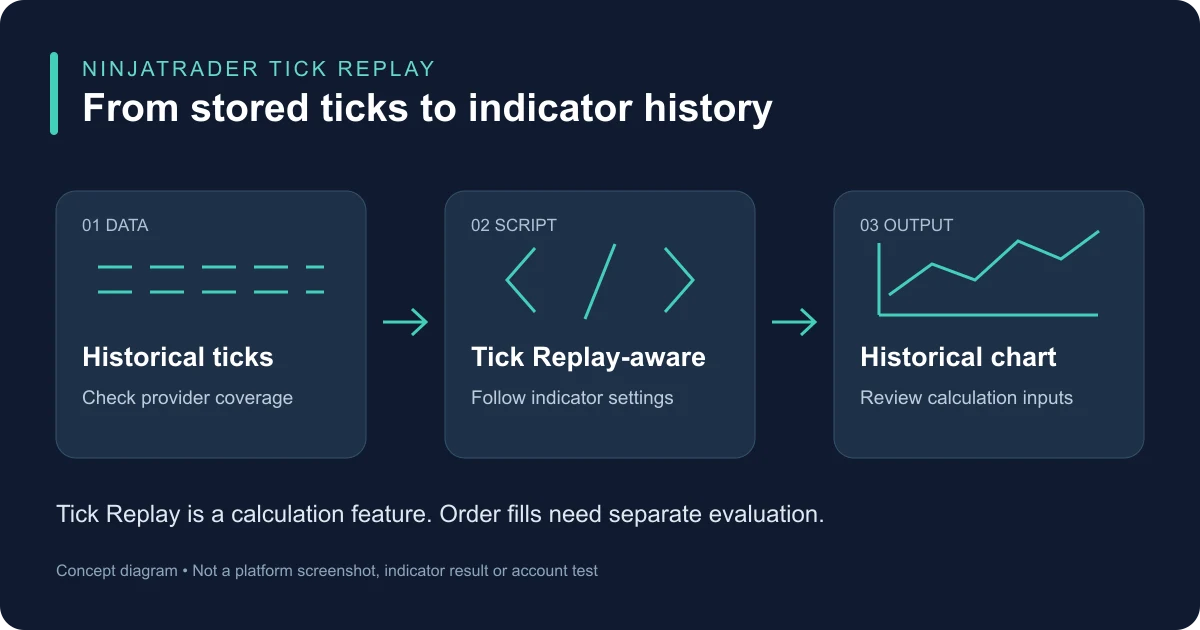
NinjaTrader Tick Replay lets indicators designed for it process historical tick events instead of relying only on completed bars. Enable it when your indicator requires that history. It is a calculation setting; the Playback practice workflow is a separate task.
NinjaTrader’s Tick Replay guide makes script compatibility a requirement. Checking the box does not make every indicator use the extra events.
Check the indicator’s calculation setting
The Calculate property controls how often a script’s bar-update logic runs. Its setting still matters when Tick Replay is enabled.
| Calculate setting | When bar-update logic runs |
|---|---|
| OnBarClose | At the bar’s close. |
| OnEachTick | On each tick. |
| OnPriceChange | When price changes within the bar, or when the bar closes. Consecutive ticks at the same price do not each trigger an update. |
With ordinary historical bars, choosing OnEachTick or OnPriceChange alone does not recreate the missing intrabar sequence. NinjaTrader’s Calculate reference explains that historical bar updates normally run at bar close; Tick Replay or a suitable multi-series script can supply intrabar processing.
Follow the indicator developer’s required settings. In particular, the reference warns that OnPriceChange can miss volume updates at an unchanged price. More frequent calculation is not automatically the right setting for every script.
Enable the property, then the chart setting
There are two switches: one exposes the option, and the other enables it on the chart series.
- Open the Control Center’s Tools menu and its Settings / Options dialog. NinjaTrader’s settings overview uses “Settings”; its Tick Replay instructions still use “Options.”
- Under Market data, enable Show Tick Replay. This makes the series-level option visible; it does not turn it on for every chart. Market data settings
- Right-click the chart and choose Data Series. Select the primary series in the Applied list, then enable Tick Replay. Confirm the instrument and contract month, date range and Trading Hours template before applying. Data Series controls
- Use an indicator that documents Tick Replay support, with the calculation settings it requires. Start with the smallest historical range needed for your review before expanding it.
If the checkbox is unavailable with NinjaTrader’s built-in Renko or Line Break bars, that is a documented limitation. Some custom bar types also disable it. Changing to a tick chart is a separate bar-construction choice; selecting Type: Tick does not itself enable Tick Replay.
Check the historical data behind the chart
NinjaTrader’s provider table lists Rithmic as providing historical tick data, Tick Replay and bid/ask-stamped ticks. The table does not promise unlimited history for every instrument or account. Check the actual contract and requested dates with your historical-data provider.
The preferred historical connection can differ from the preferred real-time connection. If quotes are moving but the older indicator output is incomplete, inspect which connection supplies history and use the historical-data guide to check the stored tick records.
Tick Replay’s developer reference explains that it builds historical bars from one-tick data. That limits how far back it can calculate and adds processing work as the requested range grows.
Understand the quote and backtest limits
Tick Replay replays Last trade events with the best bid and ask prices associated with those trades. It is not a replay of every separate quote update or a complete market-depth stream. If the tick data lacks the associated bid/ask prices, NinjaTrader documents substituting values. Bid/ask volume is not supplied by this mechanism. Check that these inputs meet the indicator’s requirements before interpreting its historical output.
Keep historical calculation separate from order-fill simulation. Tick Replay does not establish the execution sequence or fills a strategy would receive live. The Strategy Analyzer’s High order-fill resolution uses a separate, more granular price series for simulated fills, and it cannot be combined with Tick Replay. Historical fill processing
The Strategy Analyzer backtest guide shows how to set up and save a historical strategy test with explicit fill and cost assumptions.
For a slow-loading or inconsistent chart, reduce the history range and verify the script’s requirements before enabling Tick Replay across more workspaces. NinjaTrader also warns about synchronization issues with many multi-time-frame or multi-instrument scripts; a successful single-series calculation does not verify a more complex setup.
PropFirmConnector connects any Rithmic account to NinjaTrader 8. Use the connection guides for that connection step; the indicator’s design, historical-data coverage and calculation settings remain separate checks.
Documentation reviewed November 8, 2026. No live-account, indicator-performance or execution-quality test is claimed.
PropFirmConnector publishes this article and sells the Rithmic connection add-on described on this site.