NinjaTrader Volume Profile: Choose a Range and Read Volume by Price
Choose session or composite profiles in NinjaTrader 8, check the loaded range and data resolution, and compare volume by price with matching settings.
On this page
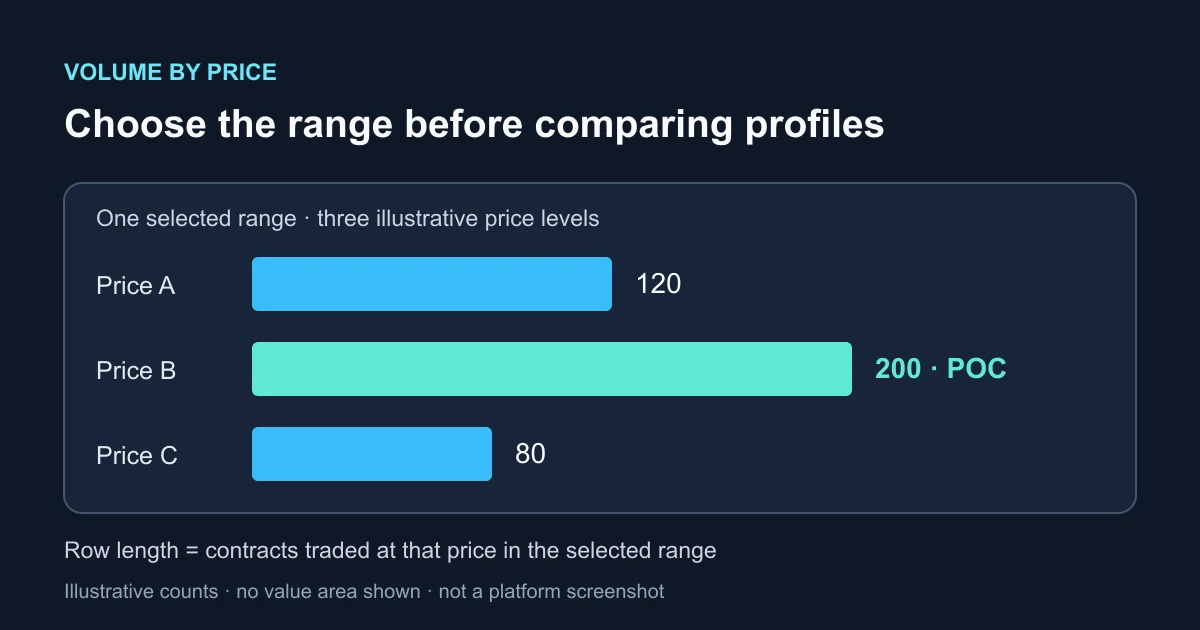
Choose the profile’s time range before comparing its shape. NinjaTrader’s Order Flow+ Volume Profile displays traded volume by price, while a conventional volume histogram groups volume by chart bar. Both views depend on the data included. NinjaTrader’s volume-analysis overview
This guide covers the native Desktop profile. For buying and selling classifications inside individual bars, use the footprint-chart guide. For quantities currently resting in the order book, use the Level II guide.
Add the indicator to the intended chart
Right-click the chart and select Indicators. Find Order Flow Volume Profile, add it to Configured, and select that configured instance to edit its properties. Check Input series if the chart has several series. Indicator controls
Before comparing results, right-click Data Series and check the instrument, expiry, Trading Hours, end date and Days to load. Select the intended series under Applied. A chart template can replace manually chosen settings, so check them again after loading one. Price-data settings
The native tool belongs to Order Flow+. If it is unavailable, check your NinjaTrader feature access separately from your Rithmic connection. Feature overview
Choose the profile range
Set Profile type to Volume. Then choose a period for the question you want the chart to answer:
| Reader task | Setting | What changes the range |
|---|---|---|
| Compare separate sessions | Profile period: Sessions; Sessions: 1 | The selected session definition |
| Combine a specified history window | Profile period: Composite; select Compose by | The chosen dates or lookback |
| Inspect only the bars on screen | Composite > Visible screen range | Scrolling changes the included bars |
These controls are documented in the Volume Profile reference.
The profile’s Trading hours setting filters data already on the chart; it cannot add omitted hours. Load the broader session first if needed, then filter the profile. The Trading Hours guide explains chart-session settings.
Check Resolution too. Minute distributes each minute bar’s volume evenly across its high-to-low prices, producing an approximation. Tick uses individual ticks and requires more resources. Ticks per level combines adjacent price levels; Value area (%) sets the included percentage. Calculation settings
Read the profile without losing its context
The point of control, or POC, identifies the most-traded price level in a volume profile. The value area marks the selected portion of volume around the profile’s central activity. Those labels describe the selected data; record the period beside any comparison. Volume and POC overview
The cover uses three invented price levels with 120, 200 and 80 contracts. The middle row is largest, so it is the POC in that simplified example. The illustration does not calculate or shade a value area.
Now imagine adding another session with 300 contracts at the first price and none at the other two. The combined counts become 420, 200 and 80. The largest row changes even though the original session’s trades have not changed. This arithmetic example shows why two profiles need matching boundaries before their labels are compared.
For a repeatable check, write down the contract, session template, date range, resolution and price grouping. Change one setting at a time and keep the original configuration available for comparison.
Check missing history before changing the connection
A requested date range does not guarantee that the provider has supplied every record. NinjaTrader’s Data by Provider table lists Rithmic historical tick data and notes that provider limitations apply. For missing dates or contracts, use the historical-data inspection guide.
When two profiles disagree, compare their settings and loaded history first. In particular, do not compare a moving visible-range profile with a fixed date window and assume they summarize the same trades.
PropFirmConnector connects any Rithmic account to NinjaTrader 8. Use the connection guides for setup. PropFirmConnector supplies connections; chart-feature access, market-data entitlements and historical coverage are separate.
Documentation reviewed November 15, 2026. The original diagram and arithmetic example are illustrative; they are not platform screenshots or account-test results.
PropFirmConnector publishes this article and sells the Rithmic connection add-on described on this site.