LucidLive on Rithmic
Lucid offers Rithmic Live and Tradovate Live. This connection is for the live Rithmic login.
- NinjaTrader System
Rithmic 01 (Chicago)
PropFirmConnector required — including one live login.
Lucid Rithmic accounts require PropFirmConnector for NinjaTrader 8. Select LucidTrading for evaluation or simulated funding, and Rithmic 01 (Chicago) for real live accounts. Tradovate/CQG uses a separate native route.
PropFirmConnector is an independent third-party add-on and is not affiliated with or endorsed by Lucid Trading, NinjaTrader, or Rithmic.
Lucid offers Rithmic Live and Tradovate Live. This connection is for the live Rithmic login.
Rithmic 01 (Chicago)PropFirmConnector required — including one live login.
Use PropFirmConnector with your Lucid Rithmic credentials. Simulated accounts keep the LucidTrading System.
LucidTradingTradovate / CQG account? Use the native NinjaTrader route. Sign in to Tradovate first with your trading credentials. Official setup.
Have your live Rithmic login ready. Complete live onboarding and confirm the account appears in R|Trader Pro. Your website and NinjaTrader application logins are separate.
Use the Rithmic username and password issued for your trading account. For the evaluation or simulated-funded route, use LucidTrading with the Chicago gateway in R|Trader Pro. For a real live Rithmic account, use the live credentials with System Rithmic 01 and the Chicago gateway. Accept pending market-data agreements and confirm the expected account appears. This activation check does not require R|Trader Pro to remain open for the direct connection below.
From your PropFirmConnector account, download PropFirmConnector.zip and close NinjaTrader completely. Extract the ZIP, then copy NinjaTrader.Custom-pfc.dll to My Documents\NinjaTrader 8\bin\Custom. Start NinjaTrader again and, when your browser opens, click Activate this device.
Open your account downloadsNo license yet? Start the free 7-day trial, then download PropFirmConnector from your account.
Start NinjaTrader 8 and sign in with your NinjaTrader account credentials when prompted. These are your NinjaTrader credentials, not the Rithmic username and password issued by Lucid Trading.
In the NinjaTrader Control Center, select Connections, then configure. Select Rithmic for NinjaTrader Brokerage, enter the Rithmic username and password for your account, and give the connection a recognizable name. Select LucidTrading for the evaluation or simulated-funded route, or Rithmic 01 (Chicago) for a real live Rithmic account. Leave Connect on start up and Plug-in mode off, then click OK. PropFirmConnector must be installed and activated for the live connection.
LucidTradingThe Username and Password are case-sensitive.
Rithmic 01 (Chicago)The Username and Password are case-sensitive.
Open Connections again and click the connection name you just created. A green status indicator and the account appearing in NinjaTrader confirm the connection.
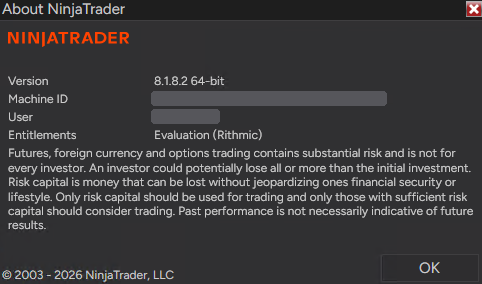
If Evaluation (Rithmic) is missing:
@APE-XTRA-DERF-UNDI-183T-PR45-LW27-63GE Rithmic account not showing in NinjaTrader: the full fix, step by step →
PropFirmConnector connects the Rithmic accounts to NinjaTrader; a separate trade copier handles orders. Check that each intended account appears before configuring a leader and followers. See how prop firm copy trading works or compare NinjaTrader trade copiers.
Lucid’s copier policy permits automated systems and trade copiers, subject to its trading rules. Traders remain responsible for software errors and unintended outcomes.
Select LucidTrading for the evaluation or simulated-funded Rithmic route described in this guide. For a real live Rithmic account, select Rithmic 01 (Chicago). PropFirmConnector is required for the live NinjaTrader connection regardless of the broker.
No. The add-on connects an existing Rithmic login; it does not change the data provider attached to your Lucid account. Ask Lucid about the options for your issued account before assuming a switch is available or that progress will transfer.