NinjaTrader Time and Sales: Quotes, Prints and Filters
Set up NinjaTrader Time and Sales for a Rithmic account. Separate quotes from trades, adjust size filters and aggregation, and check a quiet tape.
On this page
Open Control Center > New > T & S to view NinjaTrader Time and Sales. The window can show bid/ask updates alongside the time, price and volume of executed trades. Check which prices are enabled before treating every row as a trade. Time & Sales overview
Start with the contract and Last-price view
Right-click the window and choose Instruments, or type a symbol while the window is selected. Confirm the expiry as well as the root symbol; the futures-symbol guide explains that distinction.
In the right-click Prices menu, enable Last for traded-price data. Bid and Ask are optional additional displays. Use Properties to choose the columns, including Time, Price and Volume. Window controls
| Item | What you are inspecting |
|---|---|
| Bid/Ask updates | Quotes, which can change without a trade occurring. |
| Last-trade prints | Executed trade prices and sizes received from the data feed. |
| Your account executions | Your own order fills; a market-data tape does not identify them for you. |
For quantities resting across price levels, use Level II. For volume grouped inside chart bars, use the Volumetric footprint guide. These views answer different questions from a sequence of prints.
Separate filtering, aggregation and block alerts
Open Properties and review three controls:
- Size filter hides trades smaller than the selected minimum.
- Aggregation (seconds) combines ticks within the interval when their price and location relative to bid/ask match. The combined row keeps the first tick’s timestamp. Set it to 0 to disable aggregation.
- Block alert trade size sets the threshold for a block alert; the B marker identifies a qualifying trade.
The first control removes small prints from view, the second can combine prints, and the third marks a threshold. Property definitions
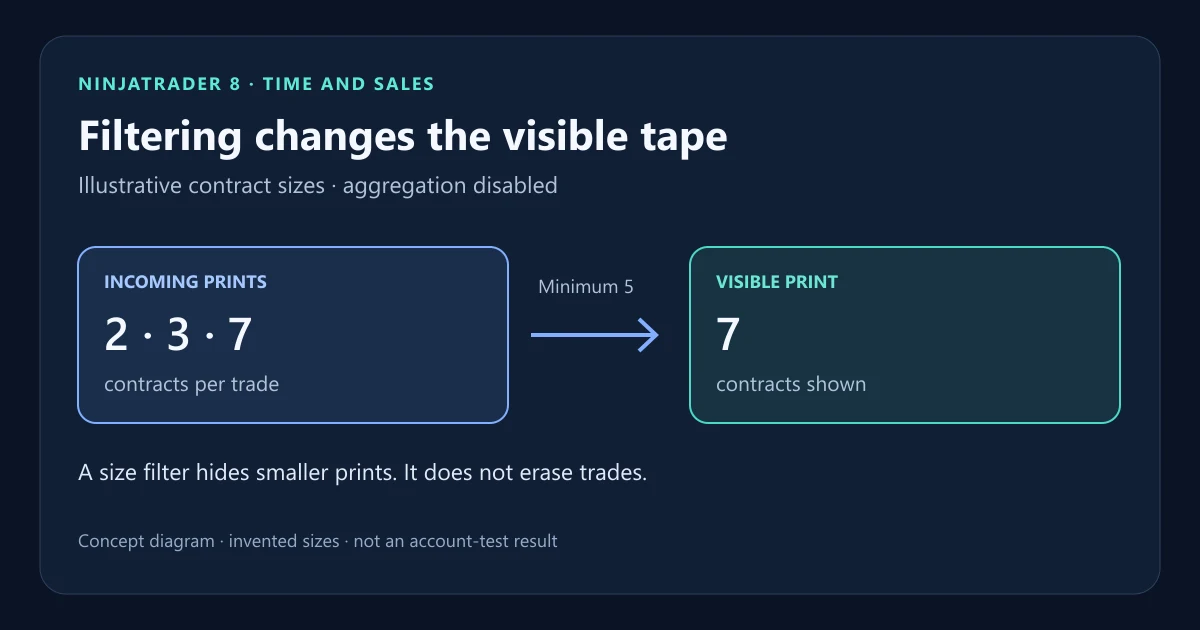
For a made-up example with aggregation disabled, incoming sizes of 2, 3 and 7 contracts and a size filter of 5 leave only the seven-contract print visible. The missing rows in this example reflect the chosen display filter, not missing executions.
A block marker does not reveal who traded. Likewise, one aggregated row is not evidence that one trader placed a single order of that size. Avoid using either display as proof of trader identity.
Compare settings before comparing two tapes
Keep the instrument and feed the same, then compare the enabled prices, size filter and aggregation interval. Start with aggregation disabled and a low size threshold to establish a reference view, then change one control at a time. Record the settings with any screenshot so another reader can understand what was excluded or combined.
Trade colors are configurable and distinguish prices relative to bid/ask. Check the color settings instead of assuming a particular color means a buyer or seller identity. Color settings
Check a quiet or apparently frozen window
Move the pointer away if Freeze on hover is enabled. Then check that Last is displayed and the size filter is not hiding the prints you expect. Display settings
Confirm the contract and whether its market is open. NinjaTrader notes that selecting an instrument outside market hours can display a provider snapshot whose first price is from the previous close. Snapshot behavior
When multiple connections are active, check the selected real-time data source. Connection order and preferred-data settings determine the feed; choosing an account for order entry does not select its data feed. NinjaTrader also does not fall back merely because the first provider lacks a particular futures entitlement when that provider supports the futures instrument class. Multiple-connection rules
If quotes are missing across the platform, use the Rithmic login and data checks. If the issue concerns older chart bars, follow the separate historical-data checks.
PropFirmConnector connects any Rithmic account to NinjaTrader 8. Use the connection guides for setup. Exchange-data entitlements and NinjaTrader display settings remain separate; PropFirmConnector supplies connections, not a trade copier.
Documentation reviewed November 12, 2026. The cover uses invented sizes to explain a filter; it is not a platform screenshot or account-test result.
PropFirmConnector publishes this article and sells the Rithmic connection add-on described on this site.